
Adding Widgets
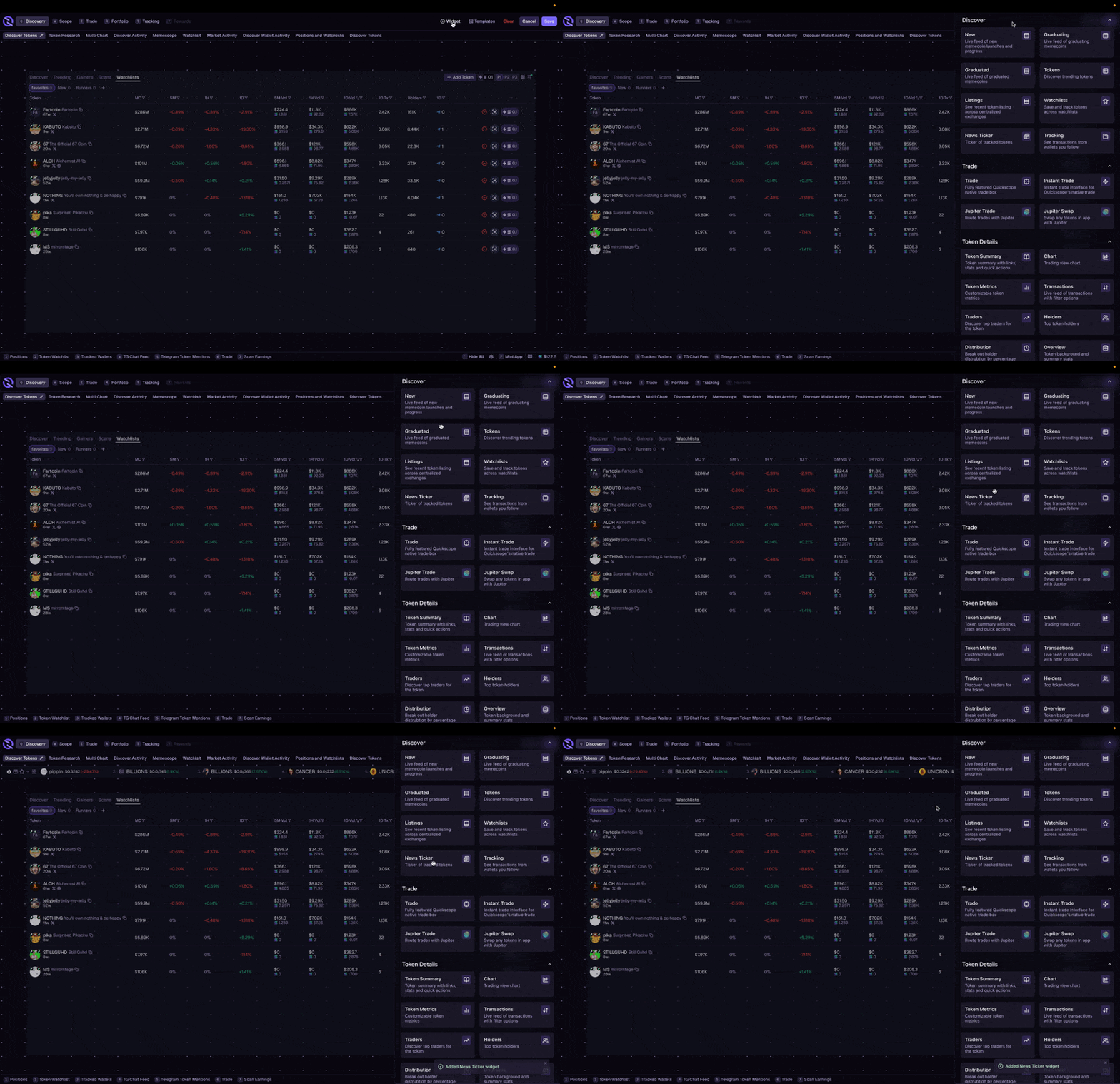
1
Enter Edit Mode
Click Edit View in the top right.
2
Open the Widget Drawer
The drawer appears on the right side with all available widgets.
3
Drag a widget onto your canvas
Resize and position it where you want, then click Save.
Widget Categories
Discover
Find new tokens, track launches, and monitor market trends
Token Details
Charts, transactions, holders, and token analytics
Portfolio
Track positions, P&L, orders, and trading activity
Telegram
Connect your Telegram activity to the terminal
Widget Controls
Most widgets have controls in their header:Customizing Columns
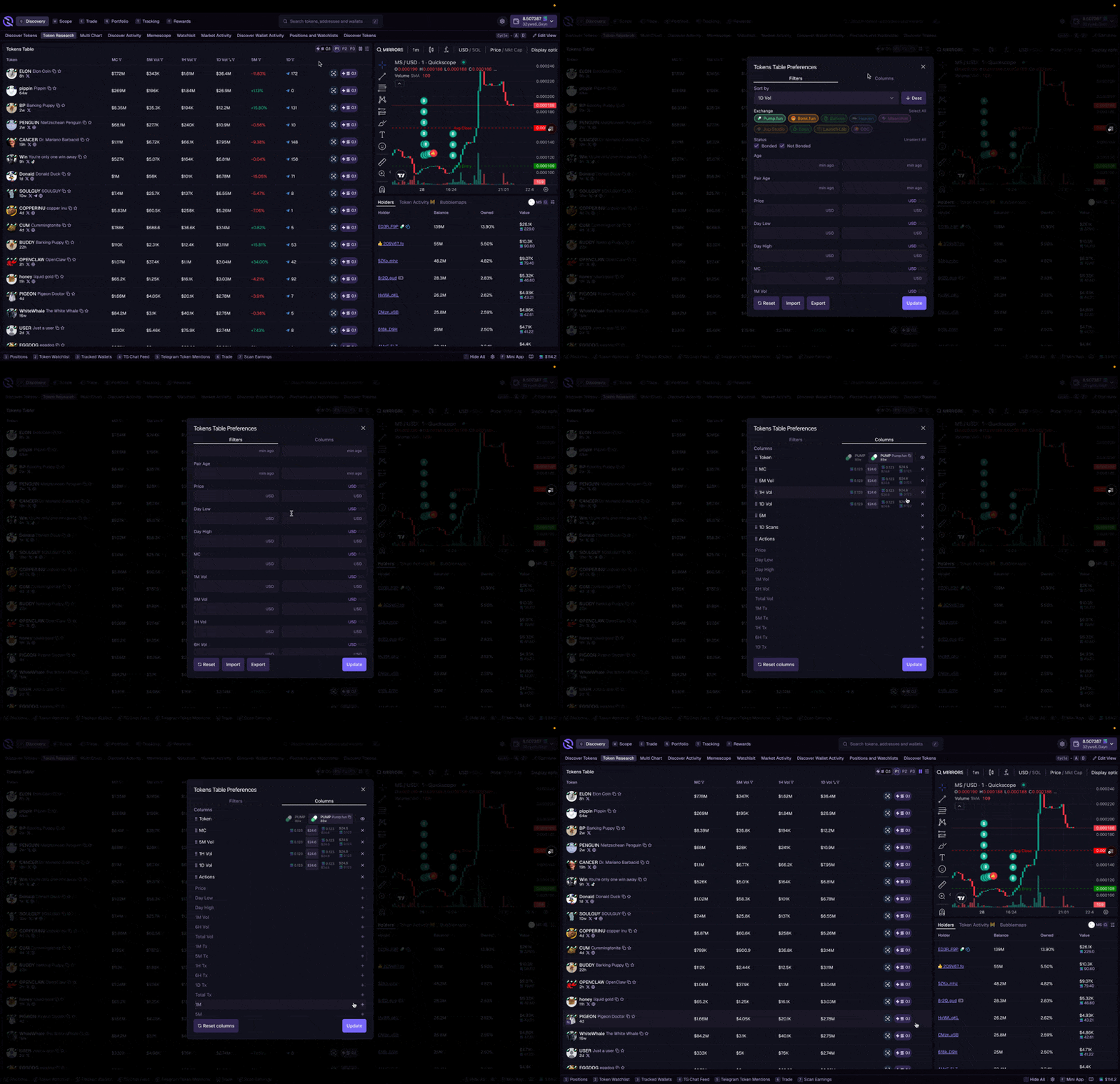
Table widgets let you choose which columns to display:1
Open column preferences
Click the settings icon on the widget, then go to Column Preferences.
2
Configure columns
Toggle columns on/off with the + and × buttons, and drag to reorder.
3
Apply changes
Click Update to save. Use Reset to defaults to restore original columns.
Folders
Folders let you group related widgets together. For example, you could group all your token research widgets (Transactions, Holders, Traders, Bubblemaps) into one folder with tabs.Creating a Folder
1
Enter Edit Mode
Click Edit View in the top right.
2
Set Folder
Click Set Folder in the top bar.
3
Add widgets to the folder
Click on widgets or drag them from the drawer. Click Done when finished.
Managing Folders
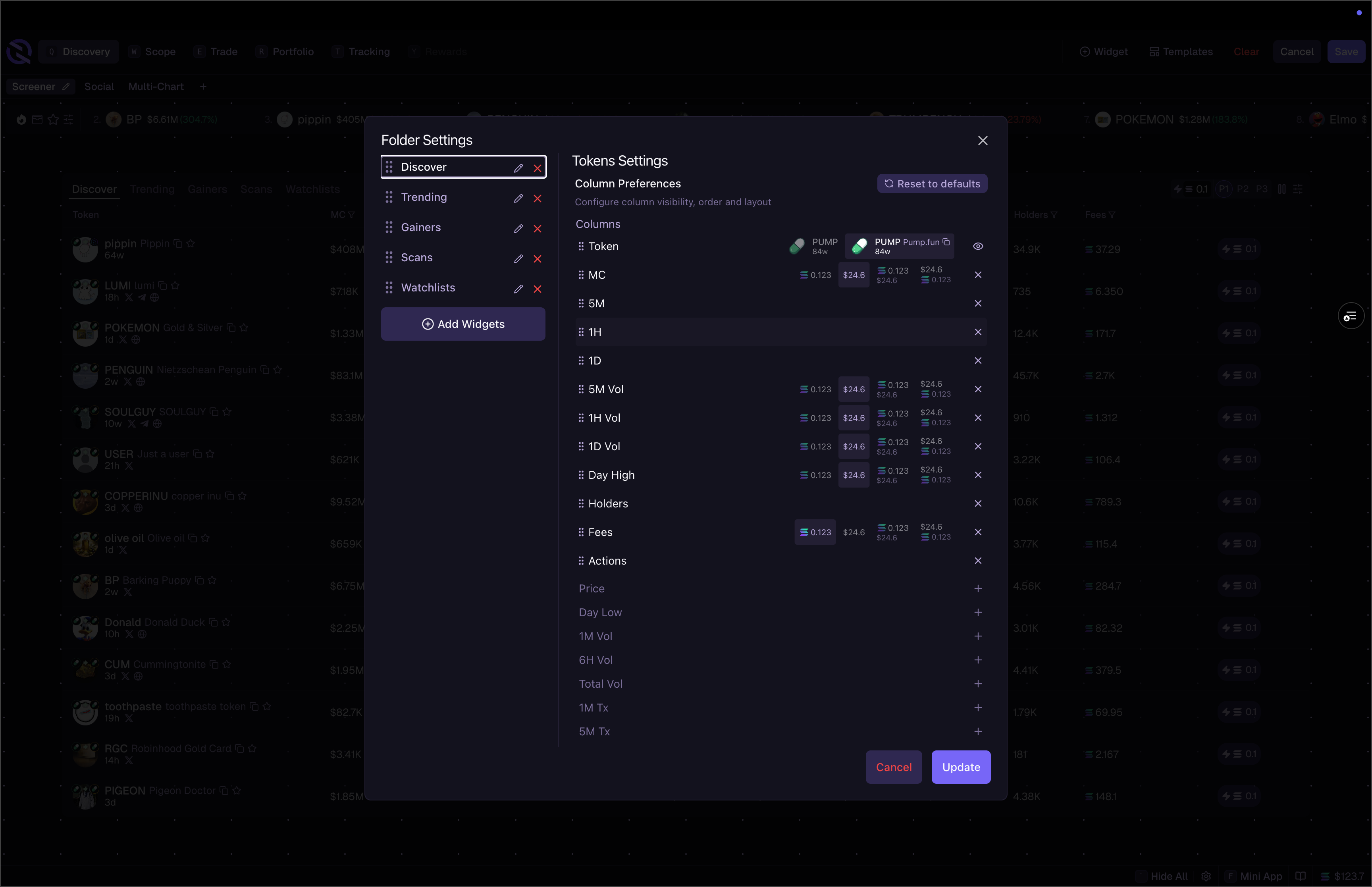
From the Folder Settings panel:- Rename folder – click the edit icon next to the folder name
- Rename widgets – click the edit icon next to any widget
- Remove widgets – click the × to remove a widget from the folder
- Reorder widgets – drag widgets to change their tab order
Widget Settings in Folders
Each widget in a folder has its own settings. Click the widget name in Folder Settings to configure:- Token Context – what token the widget displays (current page’s token or pinned)
- Column Preferences – which columns to show, hide, or reorder
Related
- Layouts & Templates – Organize your views
- Context & Filtering – Control what widgets display