
Connecting Your Phantom Wallet
1
Click Connect with Phantom
Hit the button on the login popover to start.
2
Confirm the right wallet
Make sure the correct wallet is selected in the Phantom extension.
3
Approve the connection
Accept the connection request and you’re in.
Supported Wallets
Quickscope currently supports Phantom wallet, with more wallet integrations coming soon. Sign into Phantom with an existing wallet or create a new Solana wallet to get started.Multi-Wallet Support
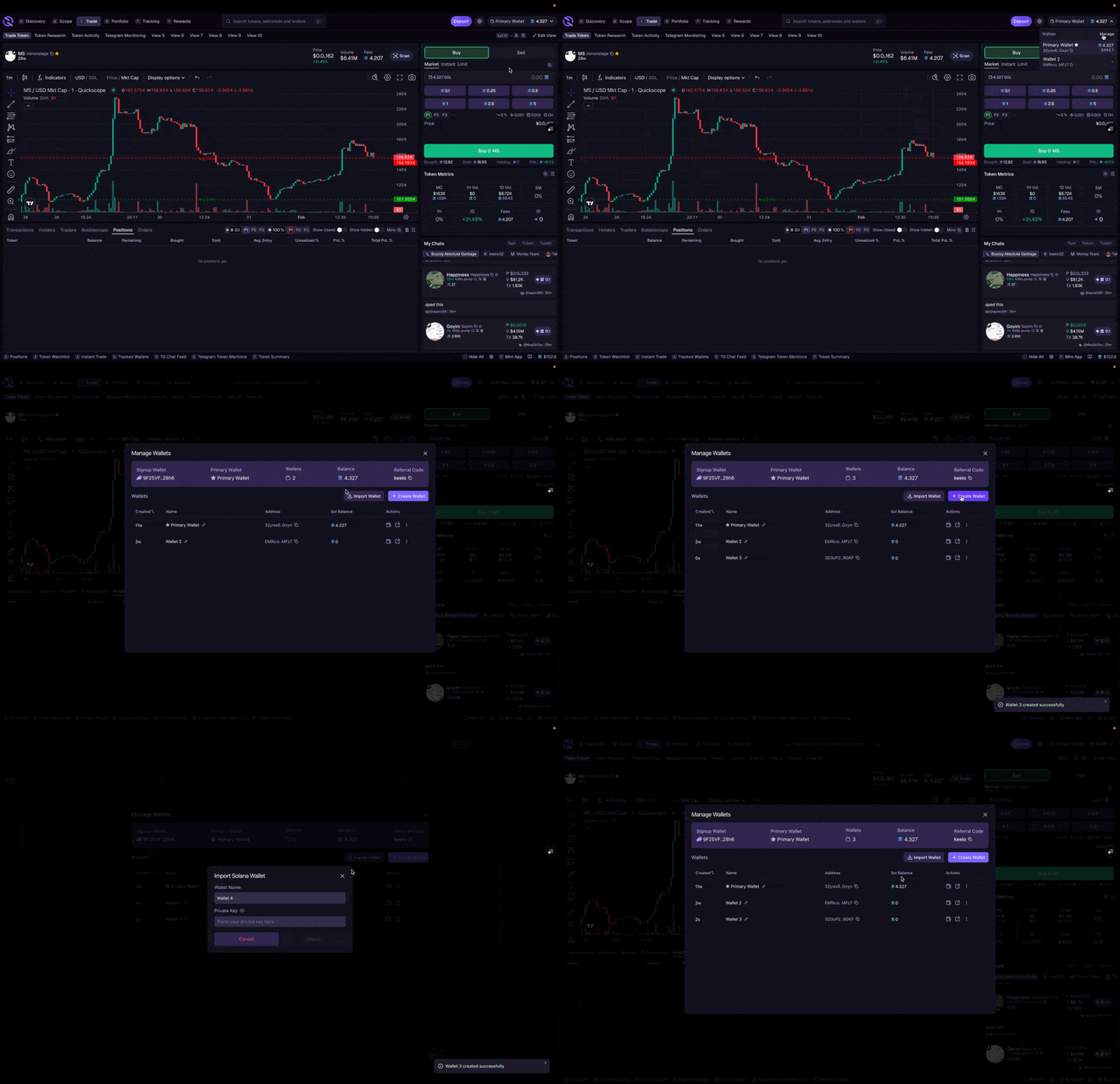
Create and manage up to 25 wallets within your Quickscope account. Click the dropdown in the top right corner and select Manage Wallets to open the wallet manager.Create wallets
Add new Solana wallets to your account
Import wallets
Bring in existing wallets with a private key
View balances
See SOL and token balances across wallets
Transfer funds
Deposit, withdraw, or move funds between wallets
Export keys
Export private keys to use wallets outside Quickscope
Remove wallets
Remove wallets you no longer need
Wallet Groups
Organize your wallets into groups for faster switching. Instead of scrolling through all your wallets, cycle between curated sets.- Open Manage Wallets from the wallet dropdown
- Click the Groups button
- Create a group and give it a name (e.g., “Mains”, “Snipers”, “Farming”)
- Assign wallets to the group
A / S hotkeys or from the wallet dropdown.
Quick Search Wallets
Search for any of your wallets directly from the top bar. Click the wallet selector or use the search field to find wallets by name or address – especially useful when managing many wallets.Switching Wallets
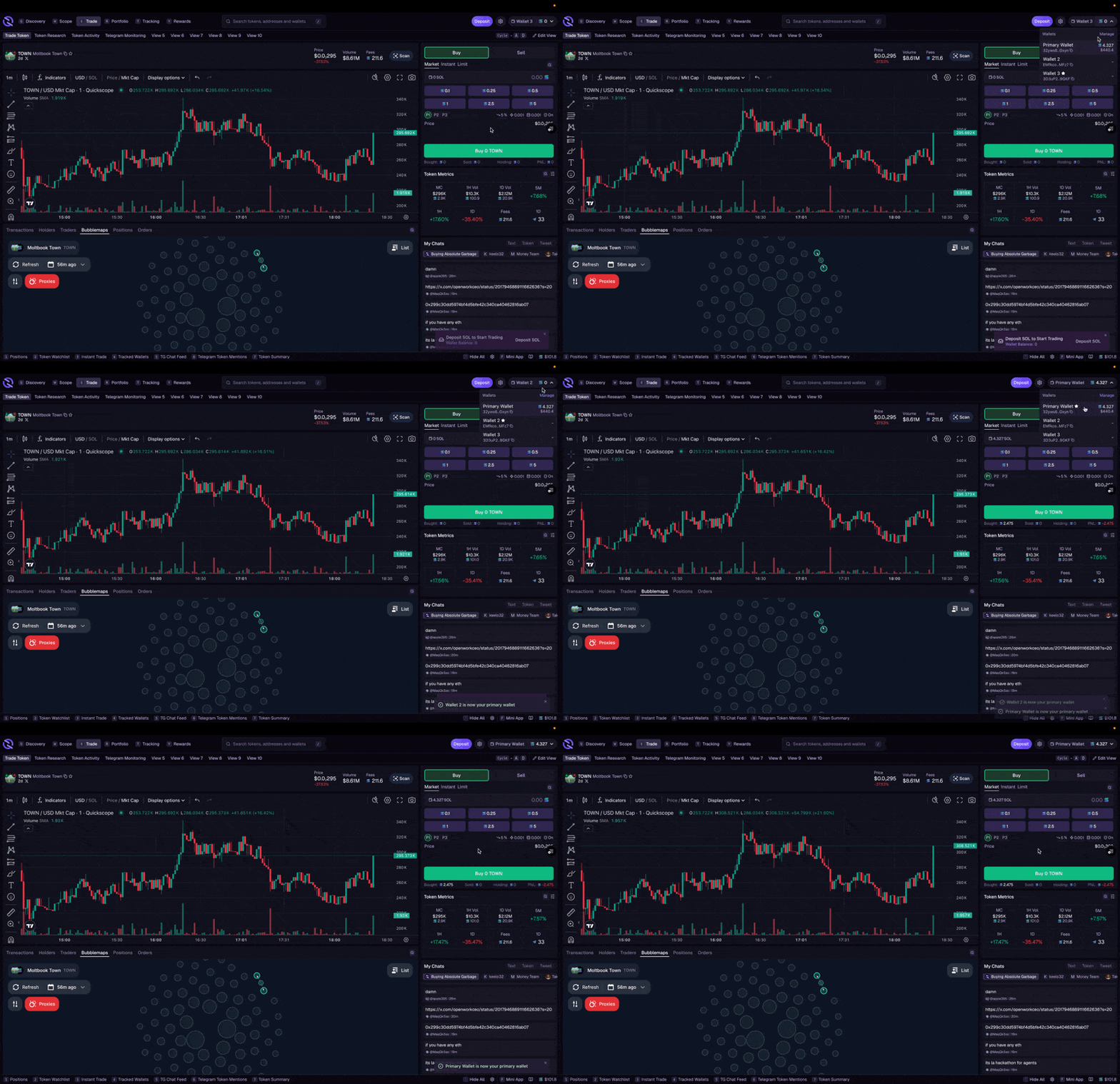
1
Open the wallet dropdown
Click the right side of the active wallet tab in the top right corner.
2
Select a wallet
Your current wallet is highlighted. Click any other wallet to switch to it.
Import Existing Wallet
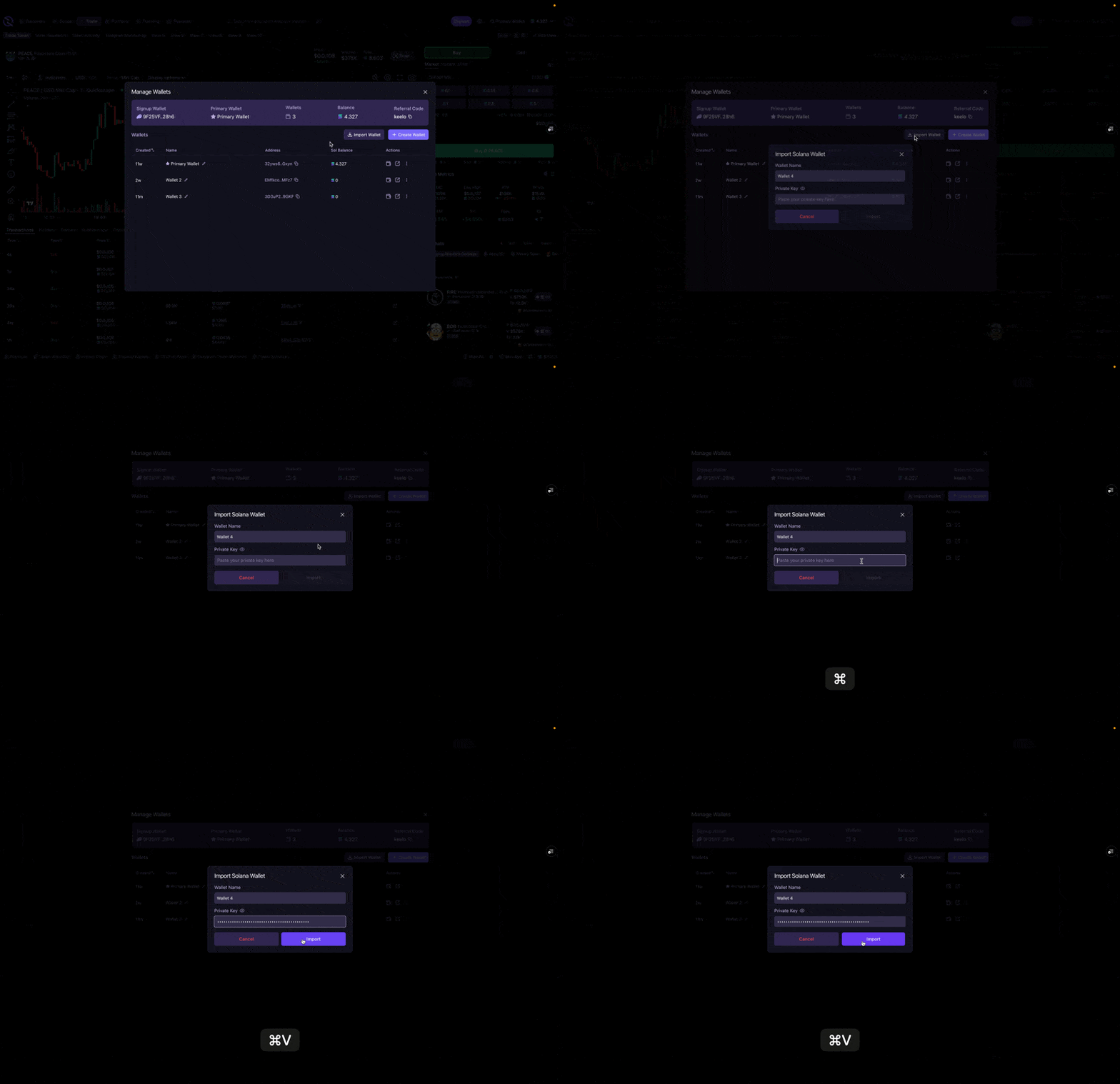
Import existing Solana wallets to your Quickscope terminal using their private key. Once imported, you can view positions and trade like any wallet created on Quickscope.1
Open Wallet Manager
Click the dropdown in the top right corner and select Manage Wallets.
2
Select Import Wallet
Click Import Wallet in the wallet manager.
3
Enter your private key
Paste your Solana wallet’s private key. Optionally, give the wallet a name to keep things organized.
Export Quickscope Wallet
Export the private key for any Quickscope wallet to access it outside the app. Open the Wallet Manager and select the dropdown in the actions column.Disconnecting
To disconnect your wallet:- Click the settings to access the dropdown menu
- Select Logout