
Customize Your Dashboard
- Click Edit View (top right)
- Drag widgets from the Widget Drawer
- Arrange and resize on the grid
- Click Save

Templates
Templates are pre-built layouts for common workflows. When creating or editing a view, you can start from a template instead of building from scratch. Available template categories include discovery, trading, portfolio tracking, and social feeds. Browse templates to find one that fits your workflow, then customize from there.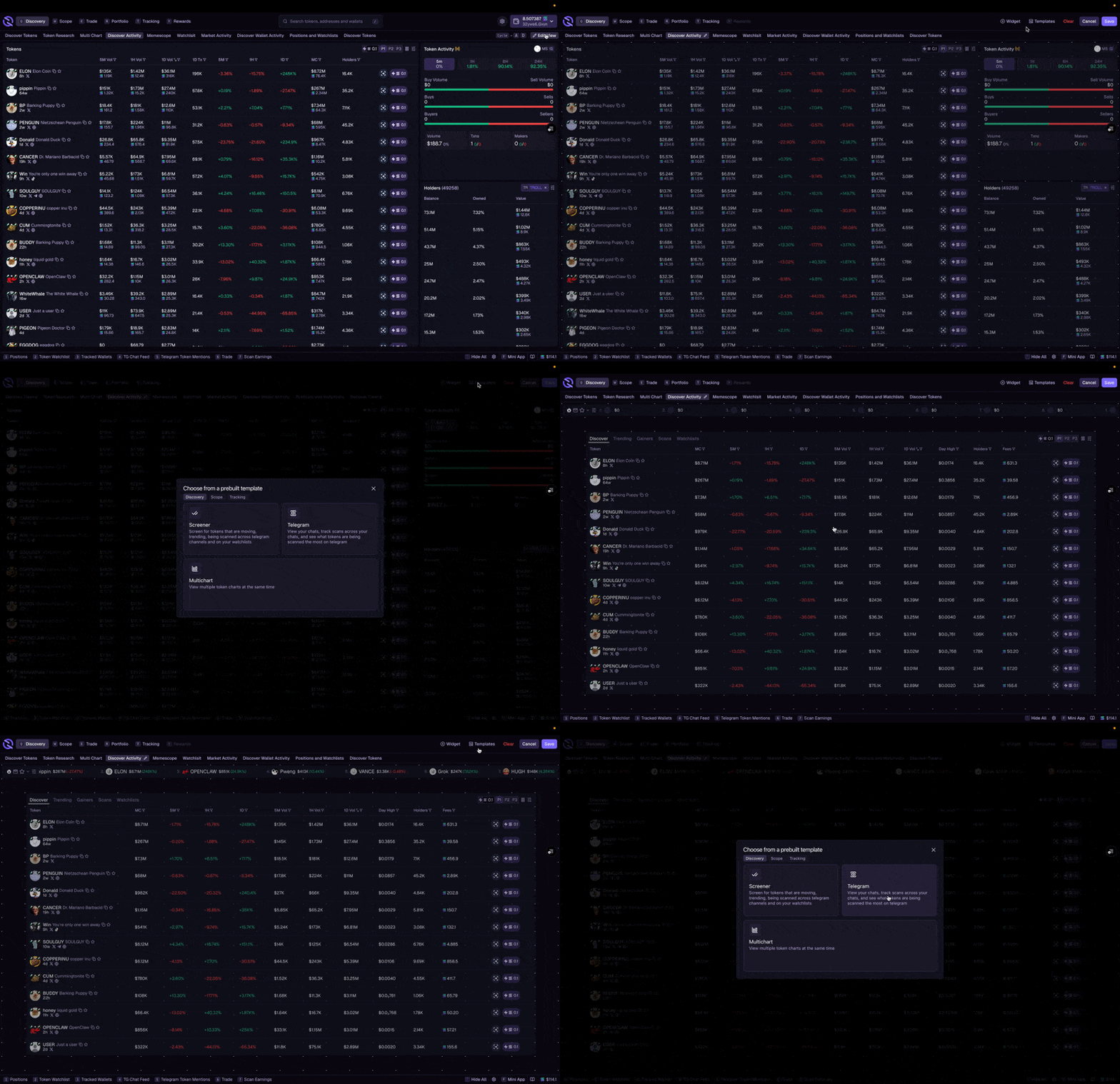
Customizing Widgets
Widgets can be configured to show exactly the data you need. Most widgets support column customization–add, remove, or reorder columns to focus on what matters. See Widgets for available widget types and settings.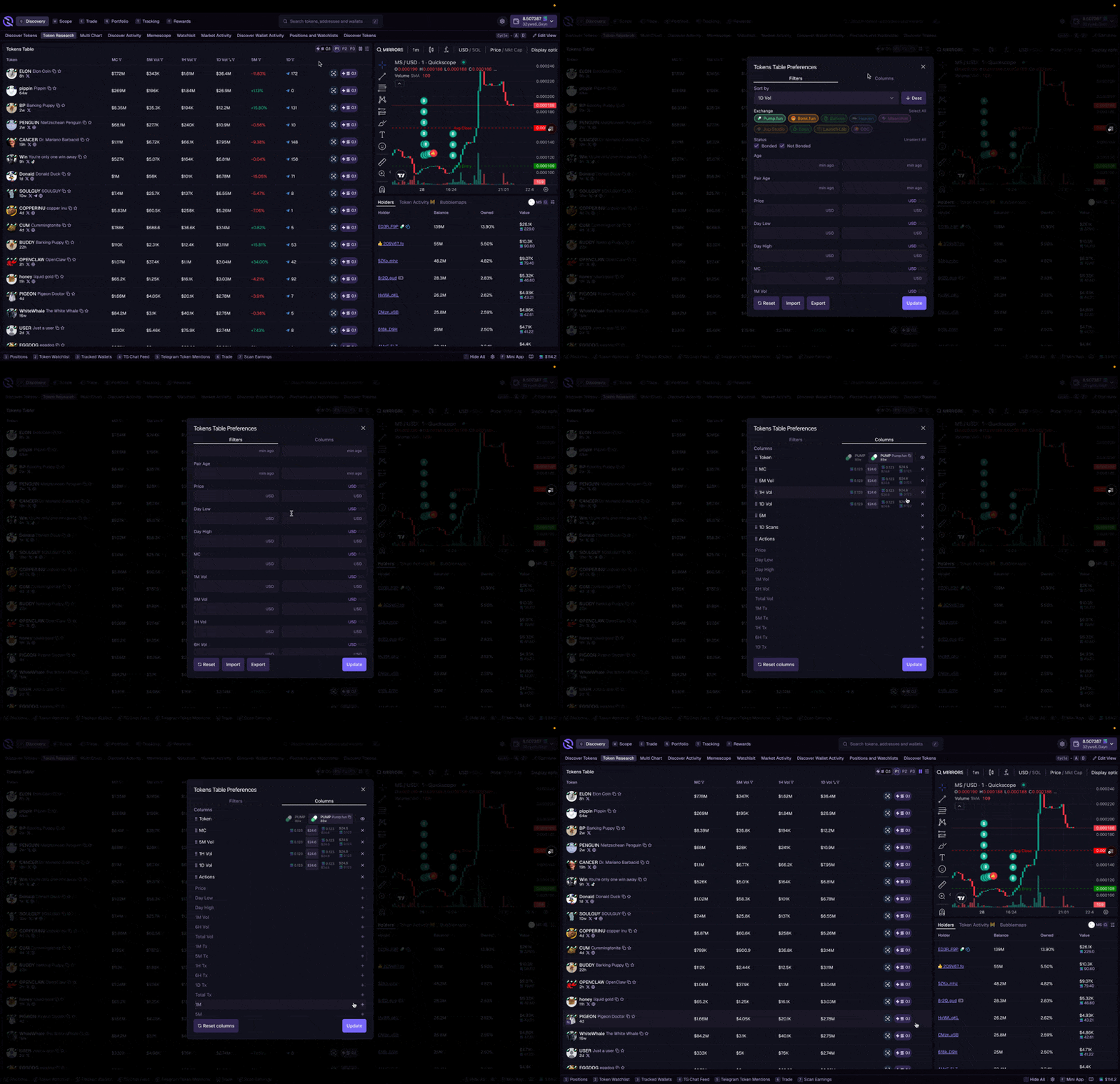
Floating Widgets
Any widget can become a floating widget that travels with you across the terminal. Pin the widgets you use most and access them from anywhere without switching tabs. Toggle floating widgets on and off as needed–they stay available until you dismiss them.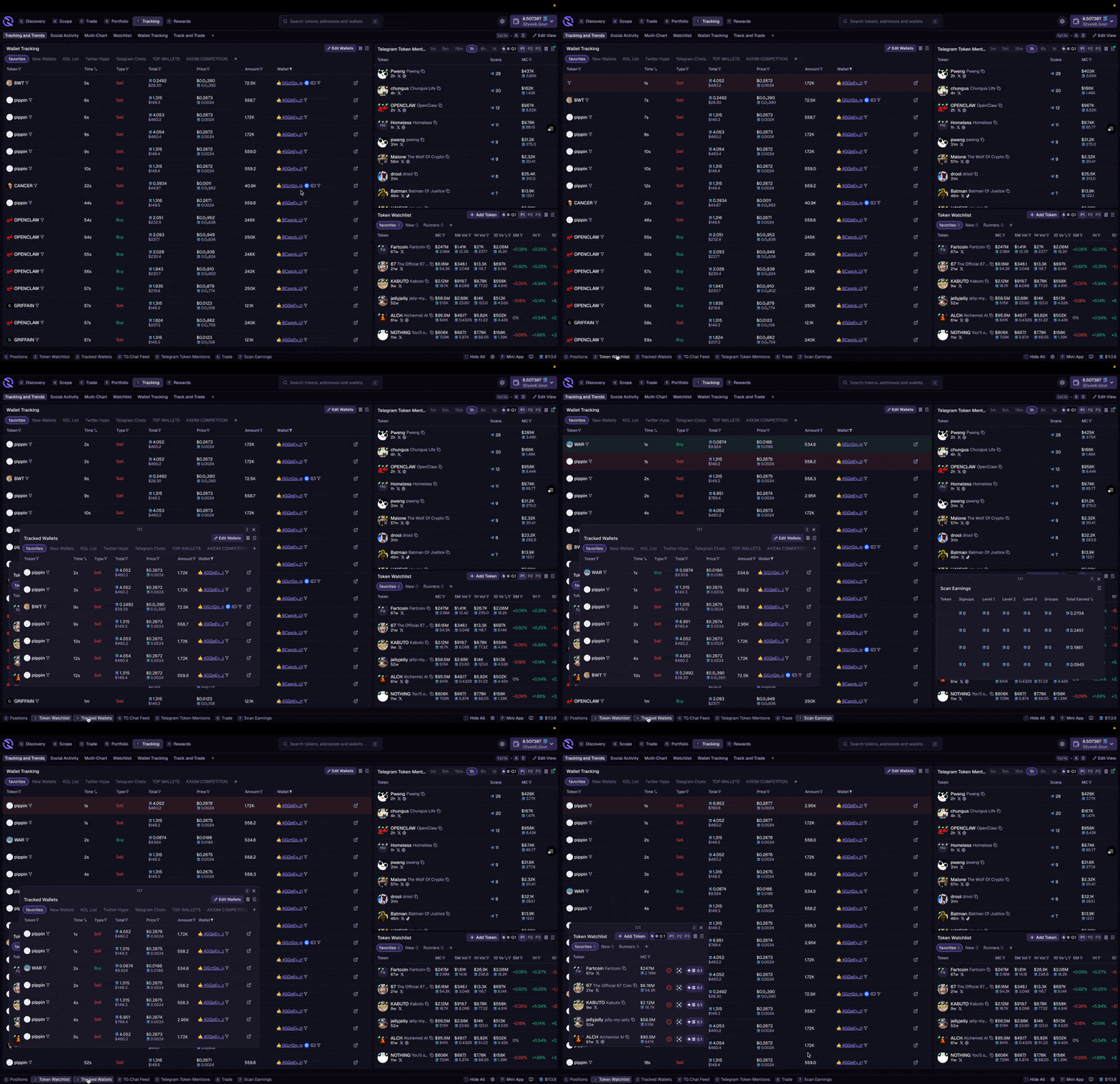
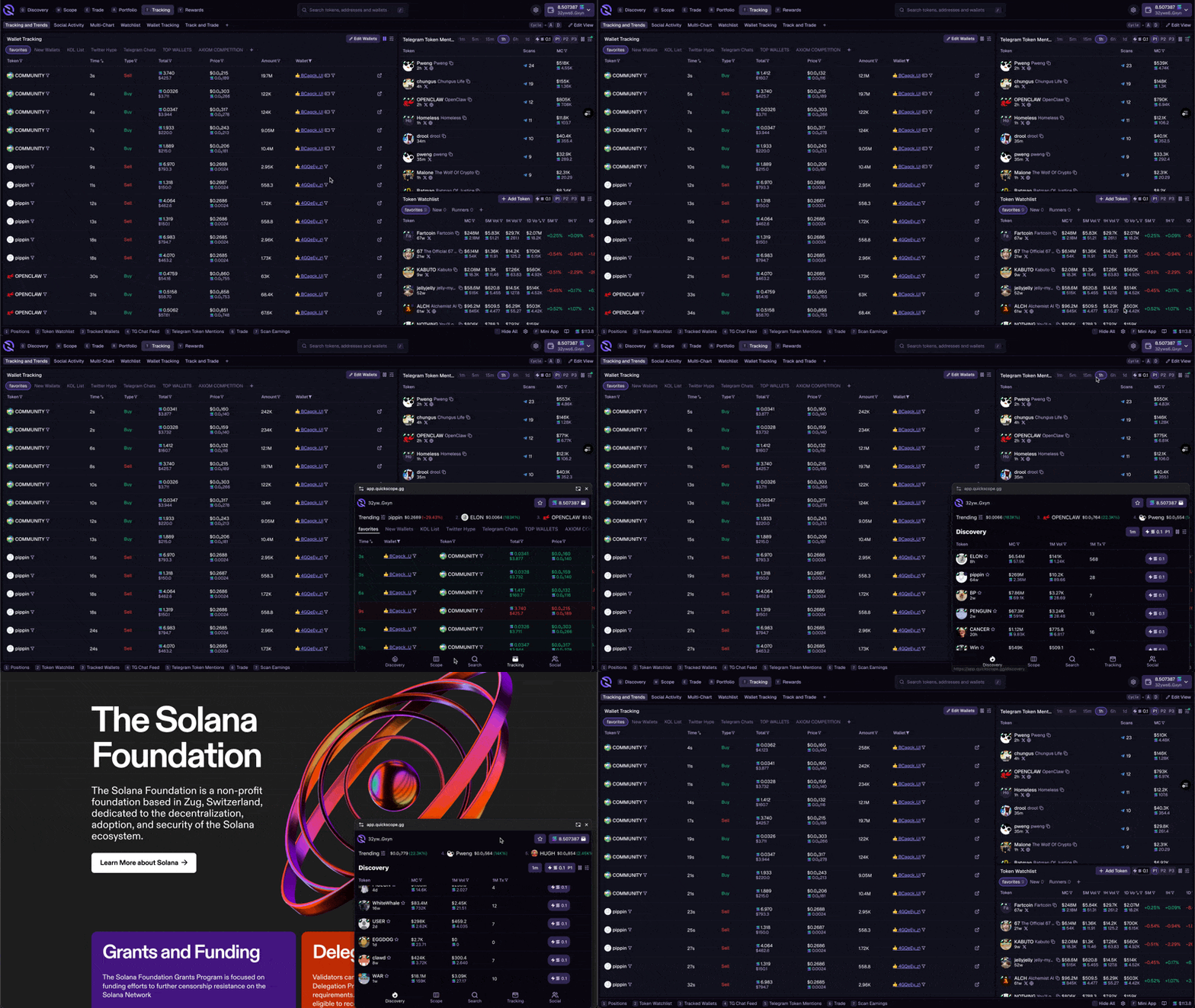
Mini App
The Mini App is different from floating widgets. It’s a picture-in-picture window (Chrome) that lets you use Quickscope while navigating elsewhere on your computer. Keep your positions up on screen, watch a chart, or monitor your portfolio while working in other apps. PressF to toggle the Mini App.
Rewards Tab
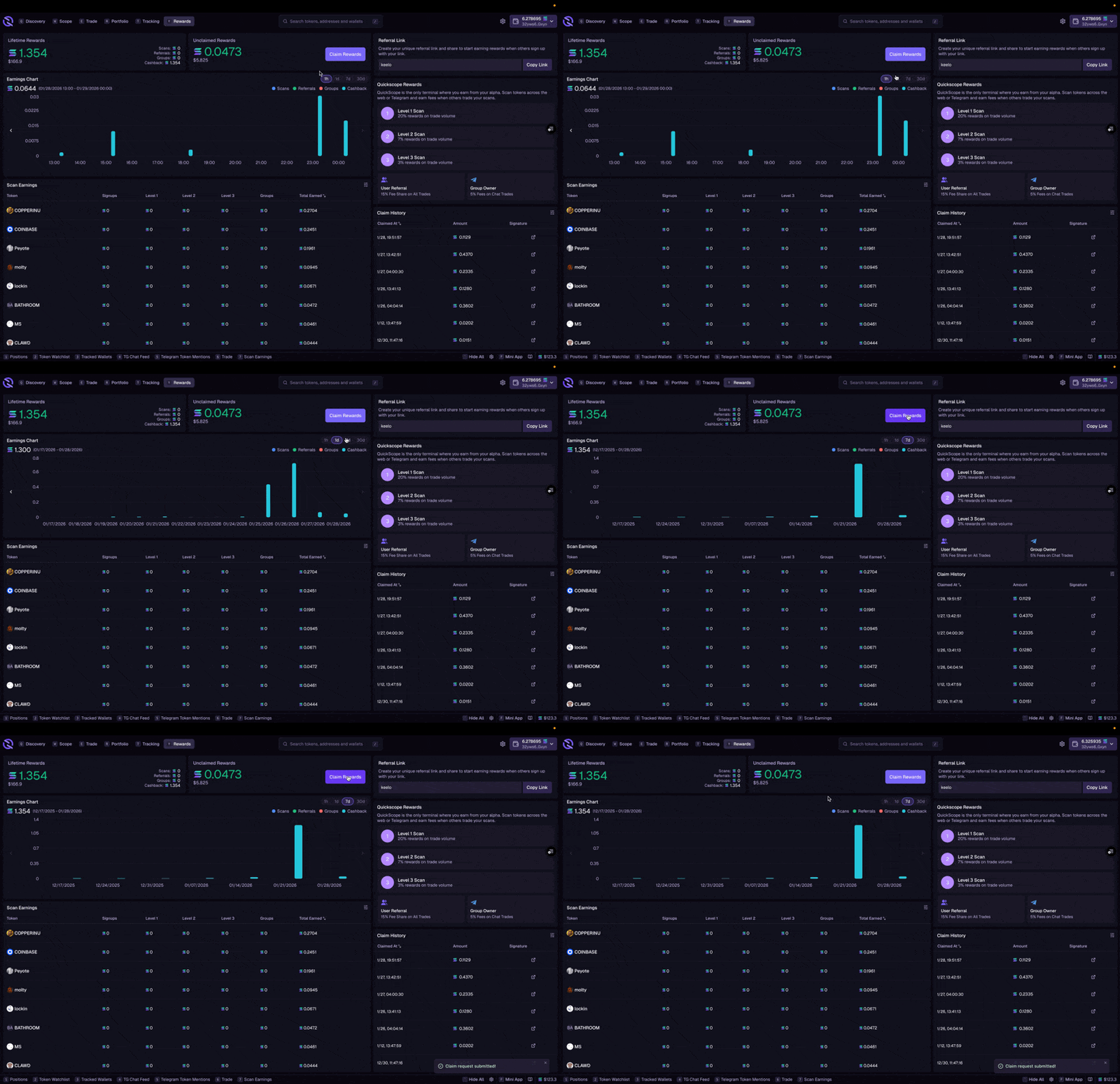
The Rewards tab shows your earnings from scans, referrals, and cashback. From this tab you can:- Claim rewards directly to your wallet
- View breakdowns of how rewards have been distributed
- See earnings by token–how much you’ve made on different tokens you’ve scanned
- Create your referral link–choose your custom link and share it to earn on referrals
Learn More
Widgets
Widget types, settings, and configuration
Layouts
Views, folders, and templates
Context & Filtering
Control what data widgets display
Mini App
Picture-in-picture trading