
Creating a Share Card
- In your Positions table, find the token you want to share
- Click the share icon on that row
- A modal opens with your PNL card preview
Customizing Your Card
The share card modal lets you:- Toggle value visibility: Show just the % change, or include the actual position value
- Choose card style: Select between different card layouts
- Preview before sharing: See exactly how your card will look
Sharing Options
Once your card looks right:- Download: Save the image to your device
- Copy: Copy the image to clipboard for quick pasting
- Share directly: Post to connected social accounts
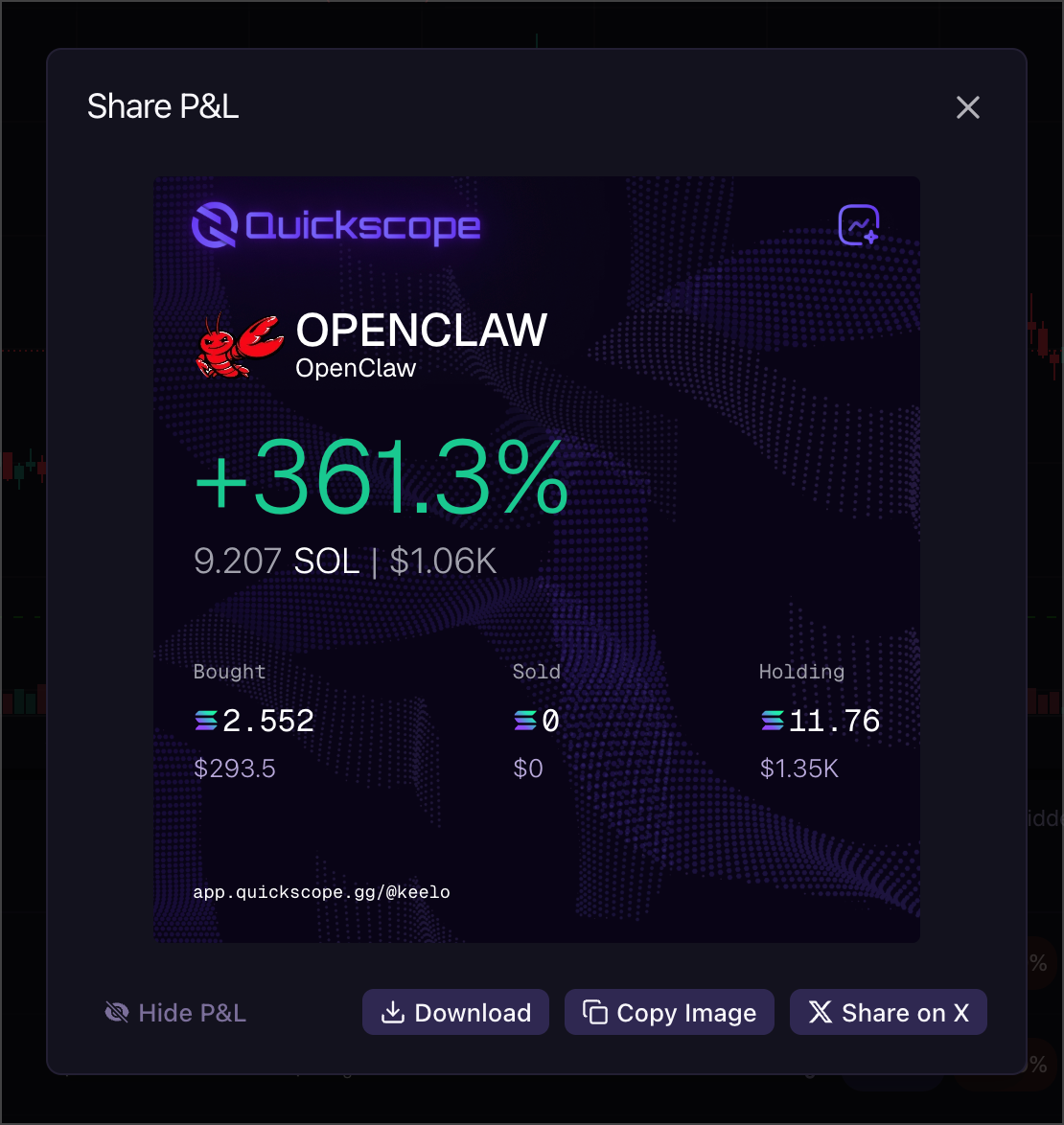
Share cards show your actual PNL data. Only share what you’re comfortable making public.