
Setting Context
- Use the search bar in the widget header
- Click a token anywhere to set it as context
- Select from tracked wallets in the dropdown
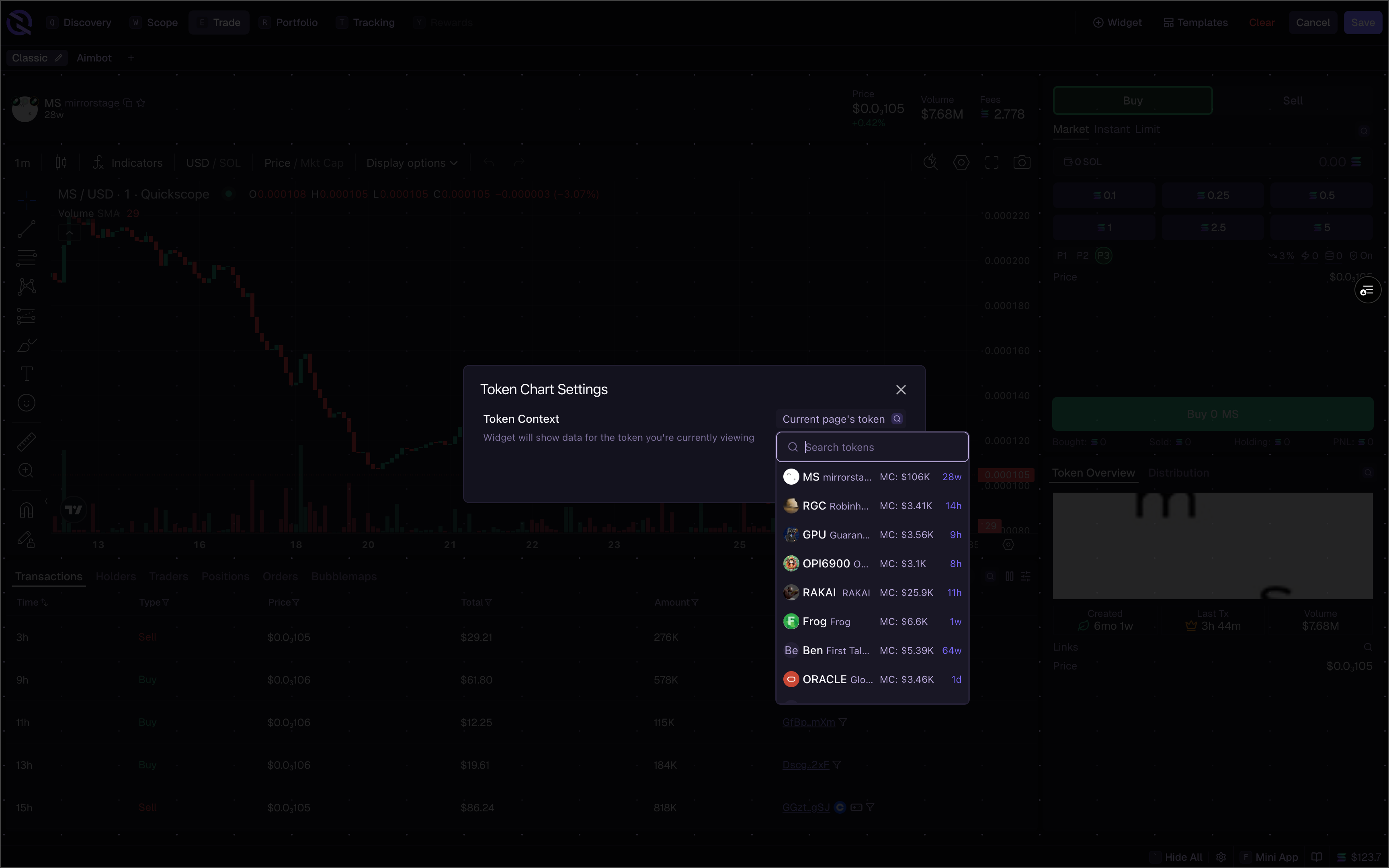
Token Context
By default, widgets show data for the token page you’re currently viewing, or the last token page you visited. To pin a widget to a specific token:- Click the gear icon on the widget
- Find Token Context
- Search for and select a specific token
Wallet Context
Wallet widgets default to your connected wallet (or multiple wallets in a multi-wallet setup). To view a different wallet:- Click the gear icon on the widget
- Find Wallet Context
- Search for any wallet address
Multiple widgets on the same page can have different contexts. A Positions widget showing your wallet can sit next to a Token Holders widget showing a different wallet.
Filtering
Filter data within any table widget by clicking the filter icon on the widget header. Filters are available on every token table – Scope, Trending, New Pairs, and any custom table widget.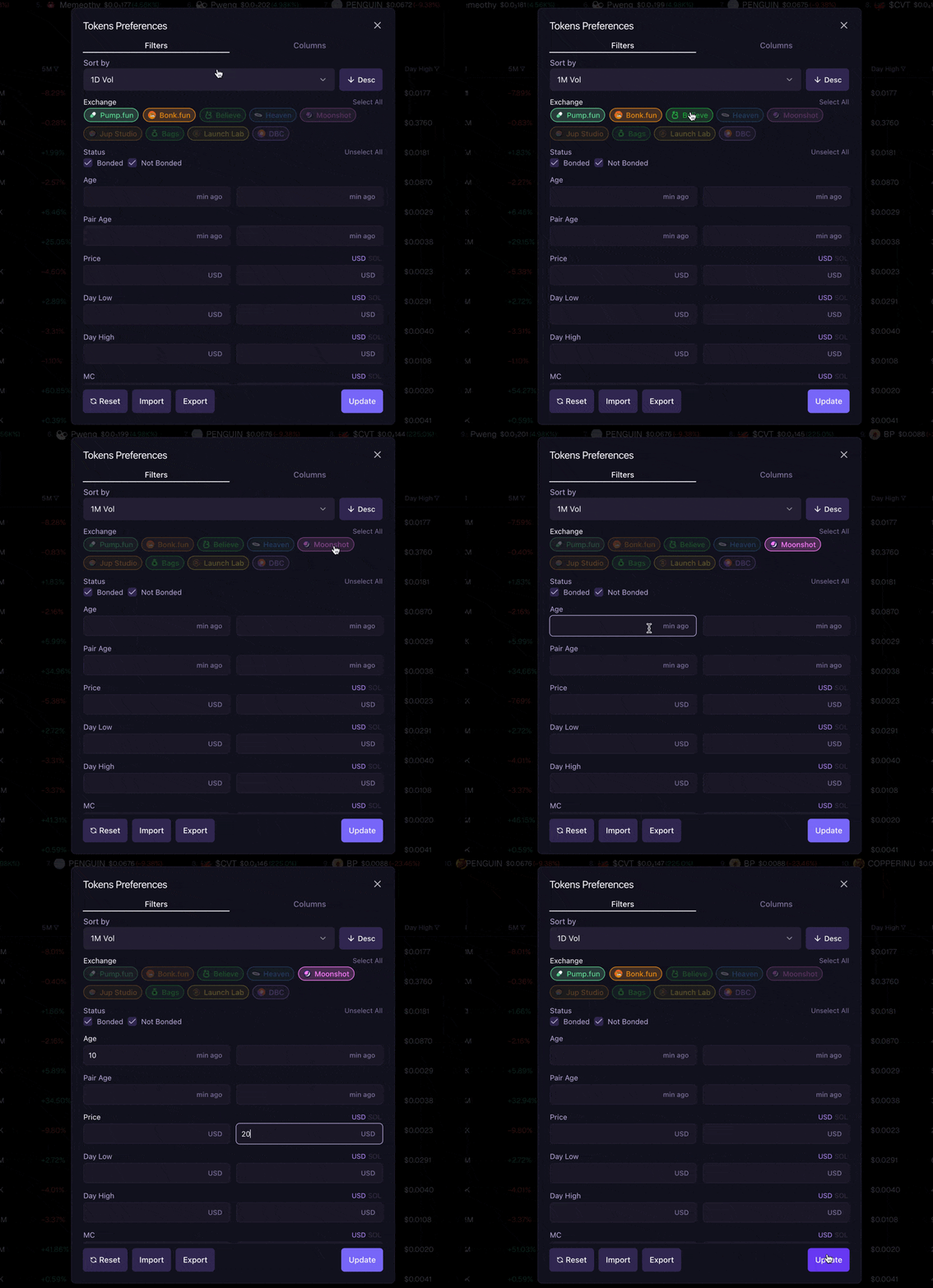
Quick Column Filters
Click the filter icon next to any column header for temporary filtering. These filters reset on refresh or tab change.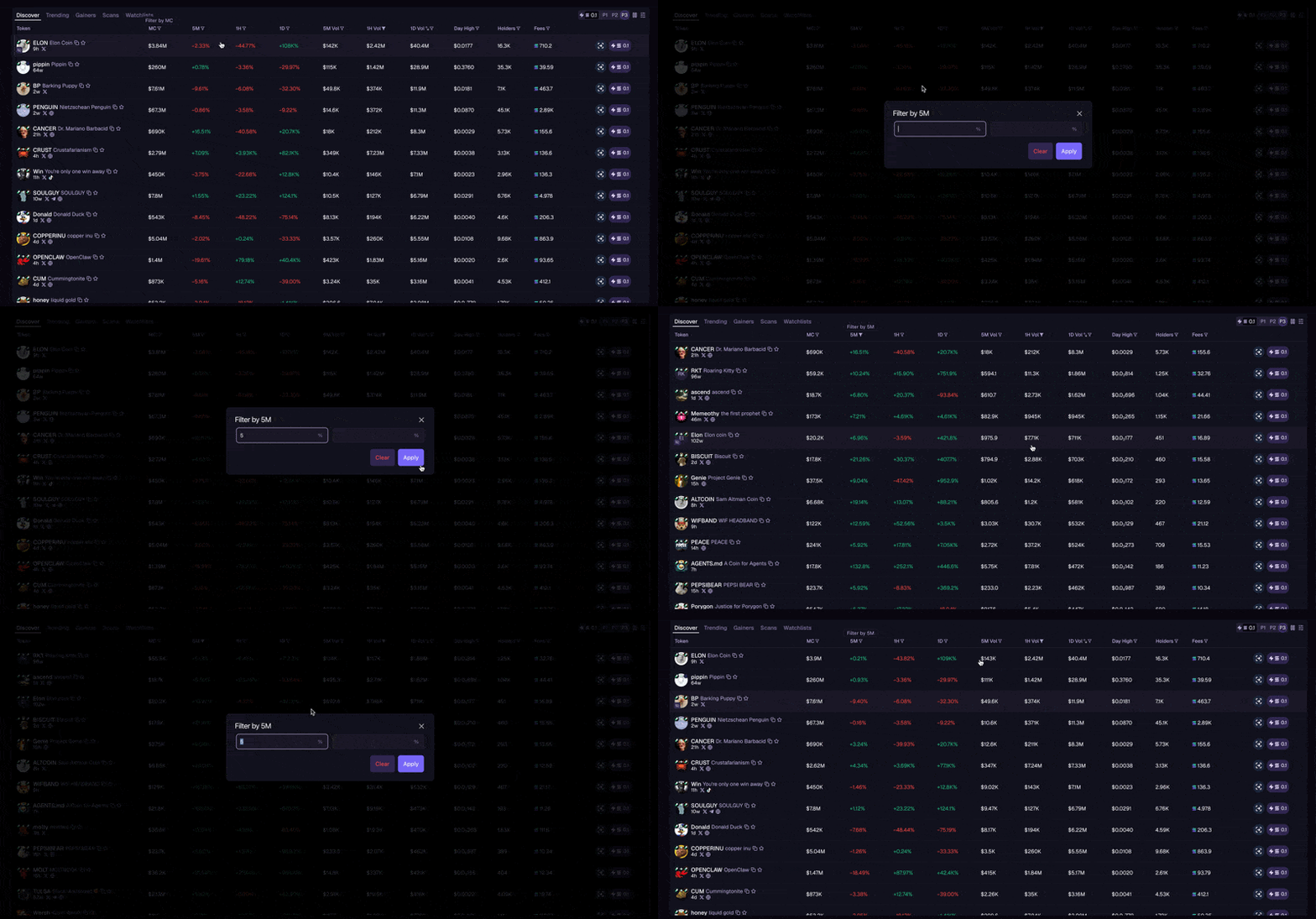
Tokens Preferences
Open Tokens Preferences from the filter panel to configure persistent filters across five tabs. Use Import/Export to share filter presets, or Reset All to restore defaults.These filters apply to all token tables. Changes persist across sessions.
General
Socials
Market
All market filters accept min/max ranges. Price, Volume, Fees, and ATH support a USD/SOL toggle.Holders
All holder filters accept min/max ranges.Creation
All creation filters accept min/max ranges.Related
- Widgets – Widget types
- Column Customization – Column visibility and ordering
- Finding Tokens – Discovery workflows