> ## Documentation Index
> Fetch the complete documentation index at: https://docs.quickscope.gg/llms.txt
> Use this file to discover all available pages before exploring further.
# Executing Trades
> Execute trades on Quickscope using Market Orders, Instant Orders, or Limit Orders
Quickscope offers three ways to trade, each suited for different situations. All trades use your configured presets for slippage, priority fee, and bribe.
## Market Orders
Standard market orders execute at the current market price through aggregated routing across multiple DEXs.
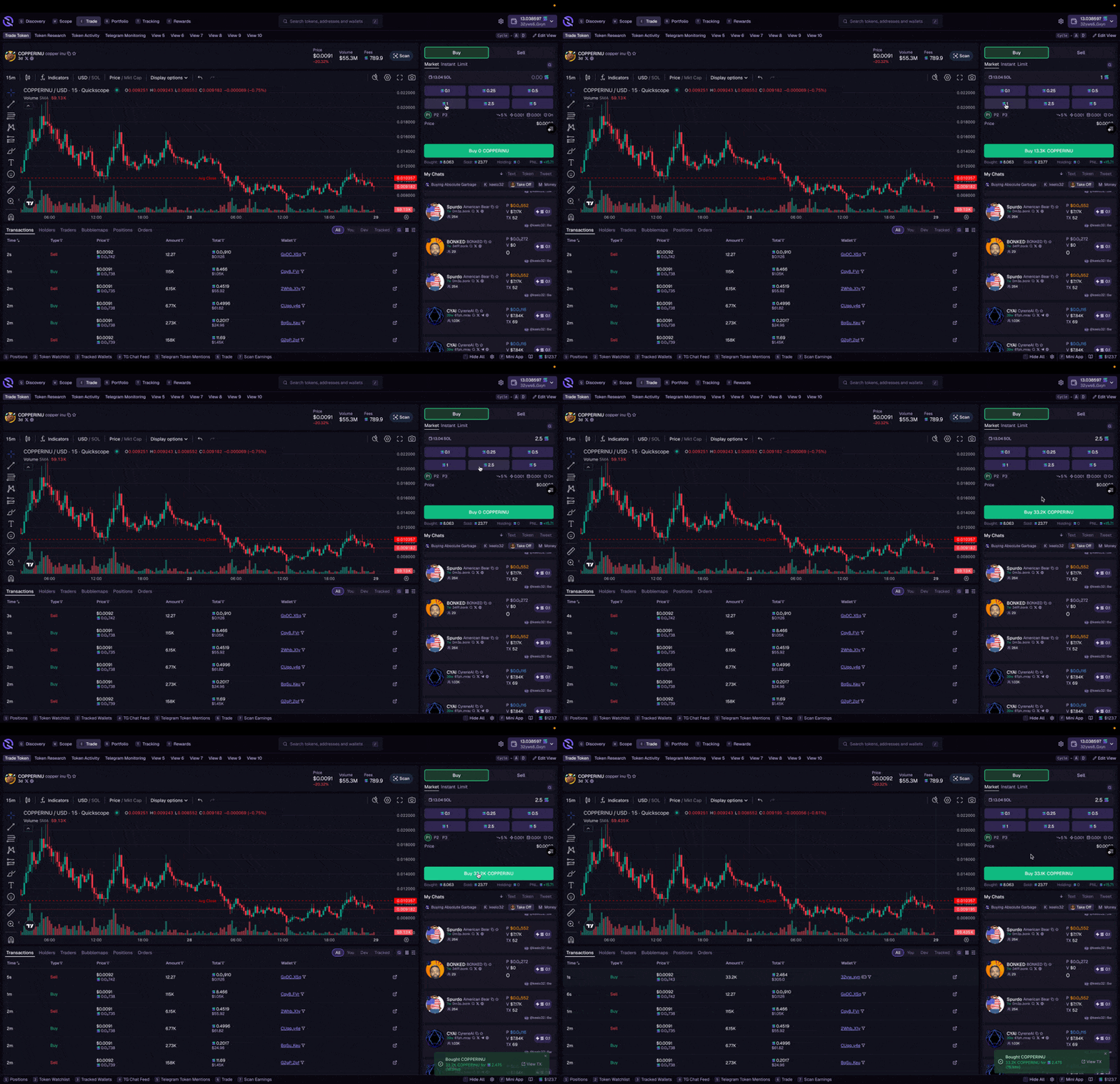 **Best for:**
* Swapping between any token pairs (not just SOL)
* Converting between stablecoins
* Trading less liquid tokens where aggregation helps find better routes
1. Navigate to the **Trade** tab or search for a token
2. Select the **Swap** widget
3. Choose your input and output tokens
4. Enter your amount
5. Review the quote and click **Swap**
1. Search for a token or select from discovery
2. Open the trade interface
3. Select swap and configure your trade
4. Confirm the transaction
Market orders may take slightly longer as prices are aggregated across multiple DEXs to find the best route.
## Instant Orders
Instant Orders are Quickscope's optimized trading method. The fastest way to execute trades on Solana.
**Best for:**
* Swapping between any token pairs (not just SOL)
* Converting between stablecoins
* Trading less liquid tokens where aggregation helps find better routes
1. Navigate to the **Trade** tab or search for a token
2. Select the **Swap** widget
3. Choose your input and output tokens
4. Enter your amount
5. Review the quote and click **Swap**
1. Search for a token or select from discovery
2. Open the trade interface
3. Select swap and configure your trade
4. Confirm the transaction
Market orders may take slightly longer as prices are aggregated across multiple DEXs to find the best route.
## Instant Orders
Instant Orders are Quickscope's optimized trading method. The fastest way to execute trades on Solana.
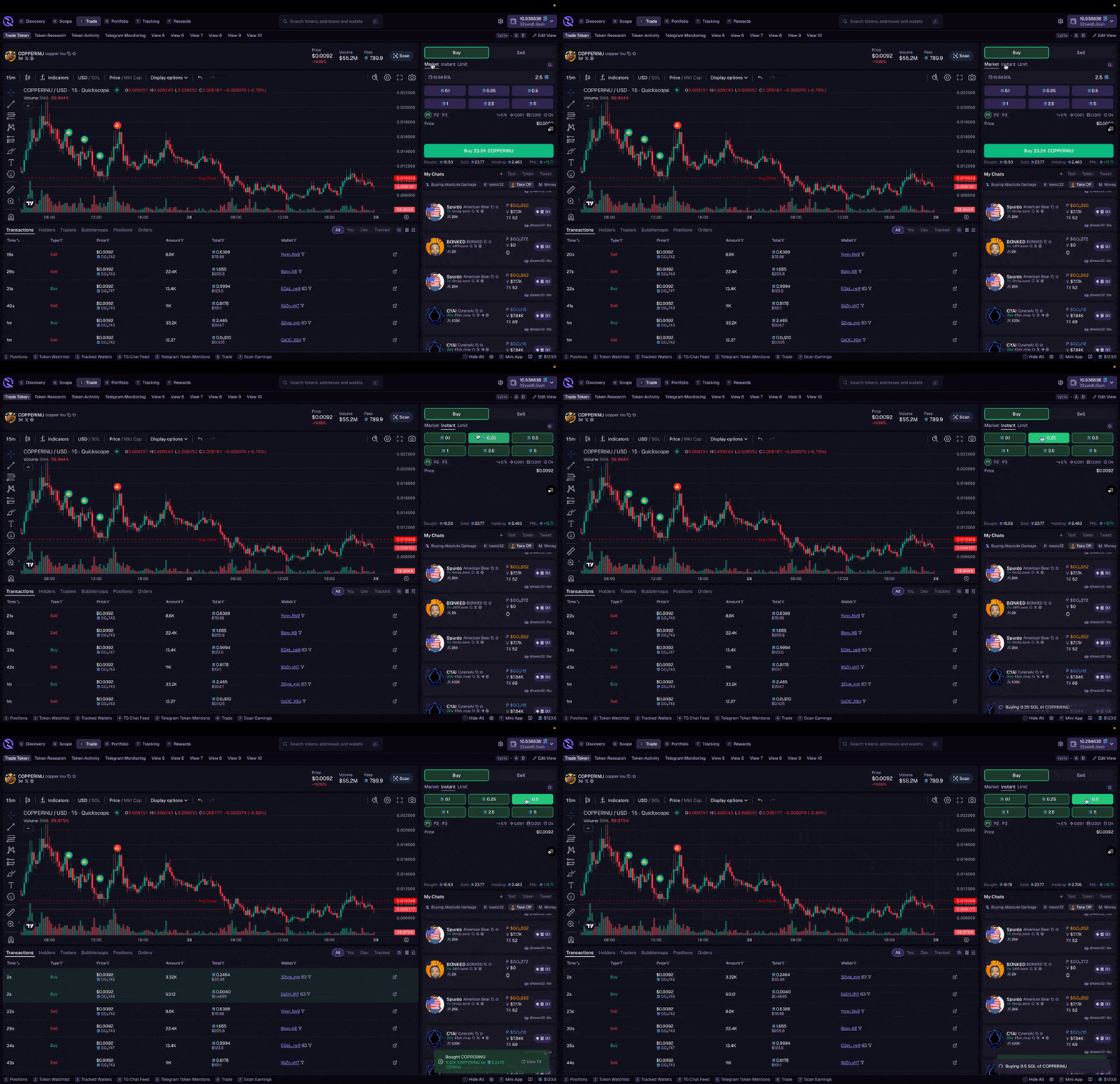 1. Navigate to the **Trade** tab or search for a token
2. Select the **Instant Trade** widget
3. Enter your amount in SOL
4. Choose your preset (P1, P2, or P3) for fee settings
5. Click **Buy** or **Sell**
1. Search for a token or select from discovery
2. Tap **Trade**
3. Enter amount and confirm
1. Scan a token with `/scan [address]` or click a token link
2. Use the buy buttons or type an amount
3. Confirm the trade
Use Instant Orders when speed matters. They execute faster than standard market orders for SOL pairs.
## Limit Orders
Set price targets and let your trade execute automatically when the market hits your price.
1. Navigate to the **Trade** tab or search for a token
2. Select the **Instant Trade** widget
3. Enter your amount in SOL
4. Choose your preset (P1, P2, or P3) for fee settings
5. Click **Buy** or **Sell**
1. Search for a token or select from discovery
2. Tap **Trade**
3. Enter amount and confirm
1. Scan a token with `/scan [address]` or click a token link
2. Use the buy buttons or type an amount
3. Confirm the trade
Use Instant Orders when speed matters. They execute faster than standard market orders for SOL pairs.
## Limit Orders
Set price targets and let your trade execute automatically when the market hits your price.
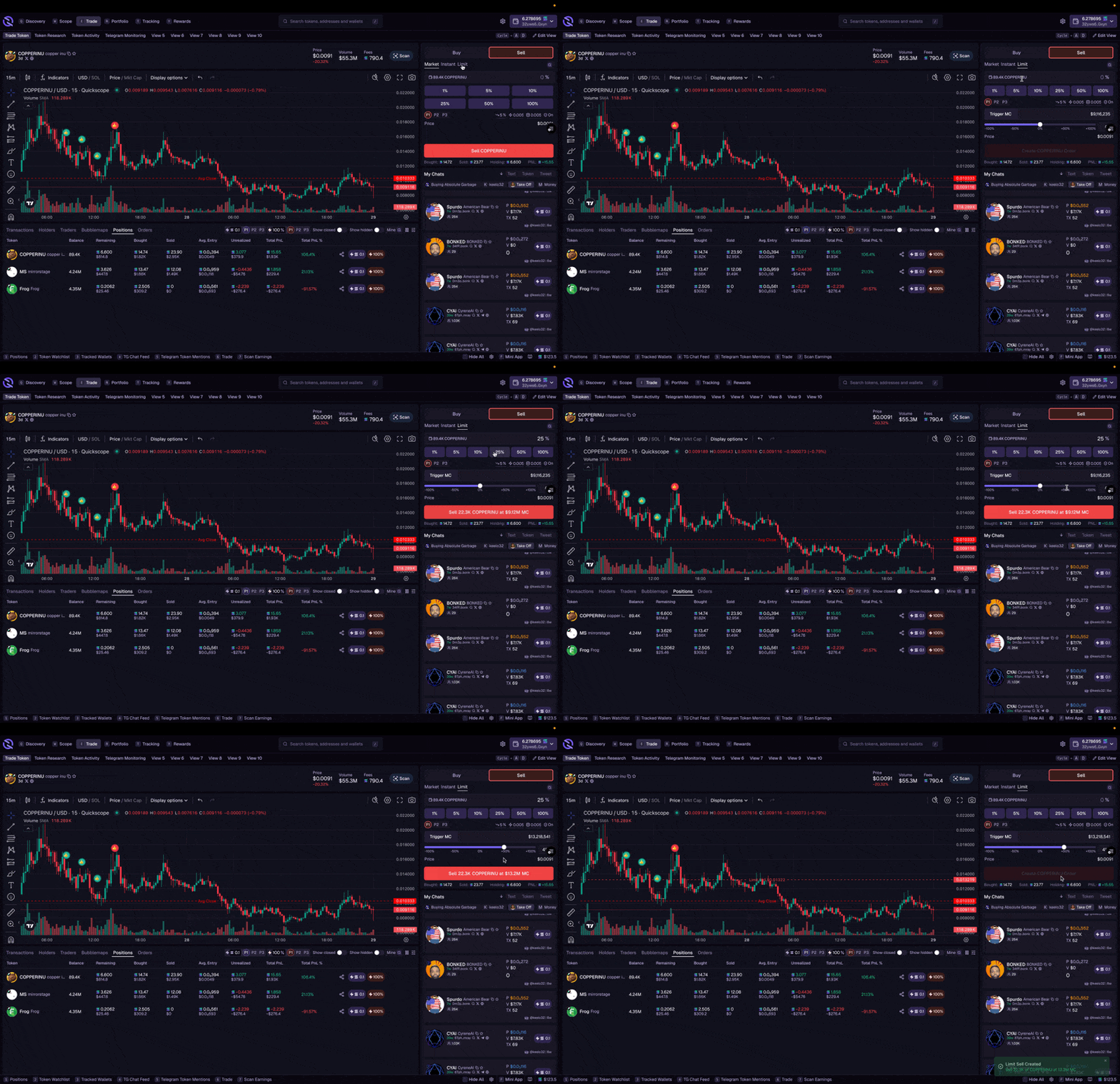 ### Limit Buy
Auto-buy when price drops to your target. Useful for catching dips.
1. Open the trade widget and switch from **Market** to **Limit**
2. Set your target by:
* Dragging the **slider** to your desired market cap
* Manually entering a **market cap** or **% change**
3. Enter your buy amount in SOL
4. Click **Create Order**
### Limit Sell
Auto-sell when price reaches your target. Use for taking profit or setting stop-losses.
1. Switch to **Sell** and select **Limit**
2. Set your target market cap or % change (above current = take profit, below = stop loss)
3. Enter amount in tokens or % of holdings
4. Click **Create Order**
Set a limit sell above your entry for take-profit, or below for stop-loss protection. You can create multiple orders at different price levels.
## Clipboard Quick Buy
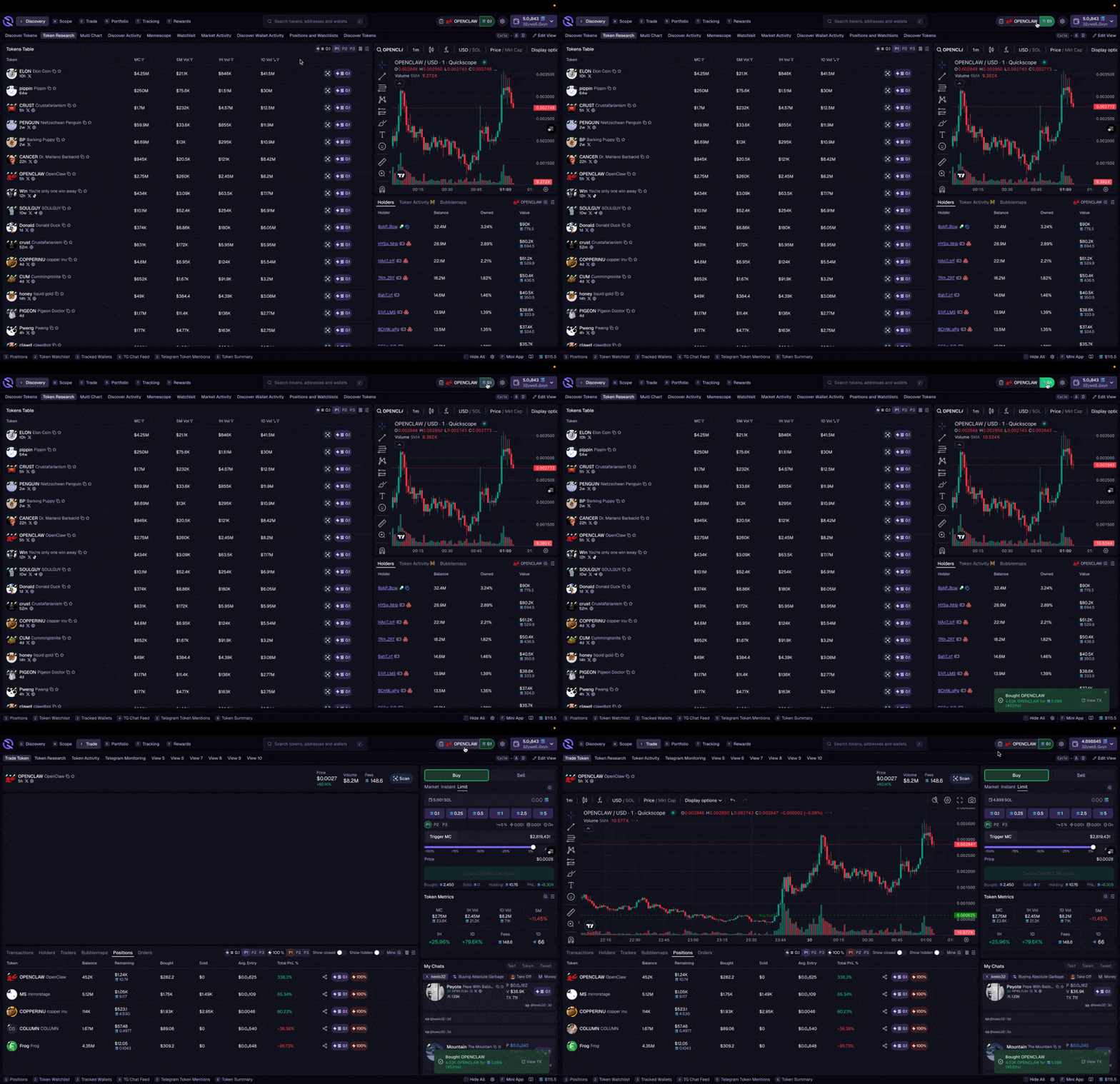
Quickscope detects token addresses in your clipboard automatically:
1. Copy a token contract address from anywhere (Twitter, Telegram, Discord)
2. A prompt appears in the navigation bar
3. Click the **token name** to navigate to its trade page, or
4. Click **Quick Buy** to instantly purchase with your preset amount
Configure your default quick buy amount and preset in Settings. This is the fastest way to ape into a token you just saw called.
### Limit Buy
Auto-buy when price drops to your target. Useful for catching dips.
1. Open the trade widget and switch from **Market** to **Limit**
2. Set your target by:
* Dragging the **slider** to your desired market cap
* Manually entering a **market cap** or **% change**
3. Enter your buy amount in SOL
4. Click **Create Order**
### Limit Sell
Auto-sell when price reaches your target. Use for taking profit or setting stop-losses.
1. Switch to **Sell** and select **Limit**
2. Set your target market cap or % change (above current = take profit, below = stop loss)
3. Enter amount in tokens or % of holdings
4. Click **Create Order**
Set a limit sell above your entry for take-profit, or below for stop-loss protection. You can create multiple orders at different price levels.
## Clipboard Quick Buy
Quickscope detects token addresses in your clipboard automatically:
1. Copy a token contract address from anywhere (Twitter, Telegram, Discord)
2. A prompt appears in the navigation bar
3. Click the **token name** to navigate to its trade page, or
4. Click **Quick Buy** to instantly purchase with your preset amount
Configure your default quick buy amount and preset in Settings. This is the fastest way to ape into a token you just saw called.
 ## Trade Settings
All trade methods use your preset settings for slippage, priority fee, and bribe.
| Setting | What it does | Recommended |
| ---------------- | ----------------------------------- | --------------------------- |
| **Slippage** | Max price deviation allowed | 1-3% normal, 5-15% volatile |
| **Priority Fee** | Validator tip for faster processing | Increase during congestion |
| **Bribe** | MEV protection / block builder tip | Optional speed boost |
## Trade Settings
All trade methods use your preset settings for slippage, priority fee, and bribe.
| Setting | What it does | Recommended |
| ---------------- | ----------------------------------- | --------------------------- |
| **Slippage** | Max price deviation allowed | 1-3% normal, 5-15% volatile |
| **Priority Fee** | Validator tip for faster processing | Increase during congestion |
| **Bribe** | MEV protection / block builder tip | Optional speed boost |
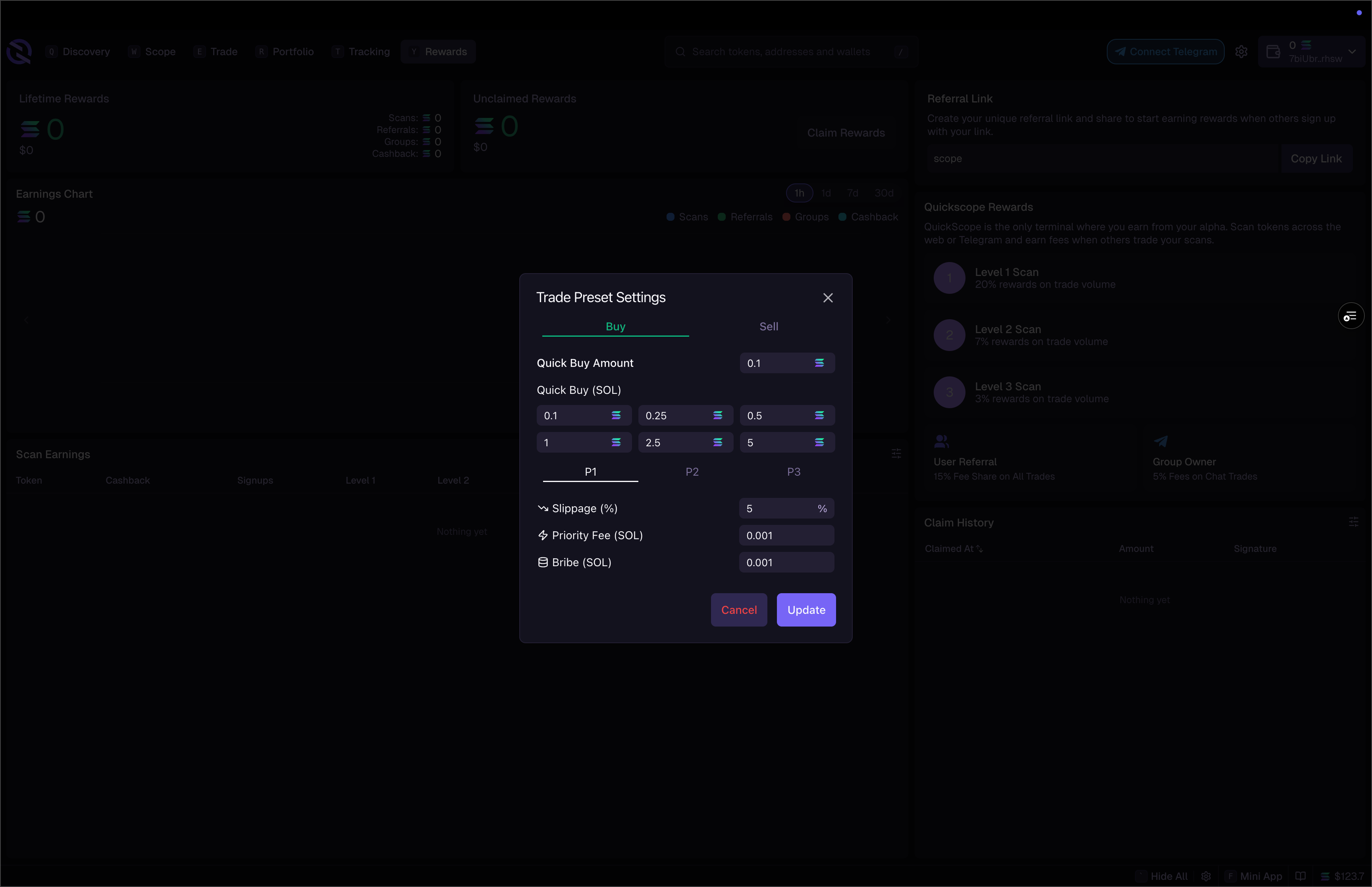 You can:
* Select presets (P1, P2, P3) from the trade widget
* Edit settings inline directly on the widget
* Configure defaults in [Trading Settings](/trading/trading-settings)
## Quickdraw
For the absolute fastest execution, enable [Quickdraw](/terminal/advanced/quickdraw). Pre-signed transactions that execute the instant you click, no wallet popup required.
## Earn While You Trade
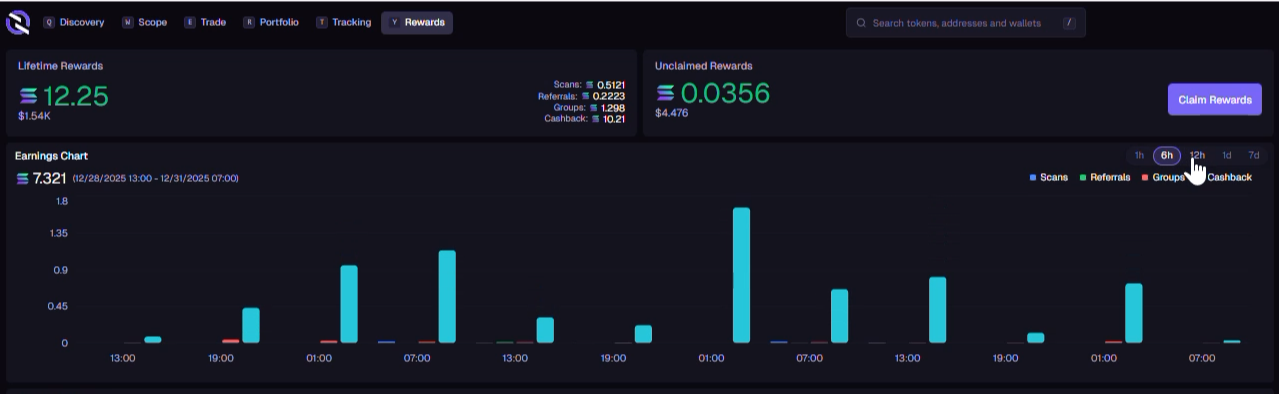
Every trade on Quickscope earns you rewards:
Up to 30% back on trading fees
Earn when others trade tokens you've scanned
Rewards from traders you've invited
Check the [Why Quickscope](/rewards/overview) tab to see how all the rewards stack together.
You can:
* Select presets (P1, P2, P3) from the trade widget
* Edit settings inline directly on the widget
* Configure defaults in [Trading Settings](/trading/trading-settings)
## Quickdraw
For the absolute fastest execution, enable [Quickdraw](/terminal/advanced/quickdraw). Pre-signed transactions that execute the instant you click, no wallet popup required.
## Earn While You Trade
Every trade on Quickscope earns you rewards:
Up to 30% back on trading fees
Earn when others trade tokens you've scanned
Rewards from traders you've invited
Check the [Why Quickscope](/rewards/overview) tab to see how all the rewards stack together.
 ## Coming Soon
Instant execution with keyboard shortcuts
More sophisticated order types and strategies
Multi-wallet trading is now live! Connect and manage up to 25 wallets from the [Wallet Manager](/terminal/desktop/connect-wallet).
## Coming Soon
Instant execution with keyboard shortcuts
More sophisticated order types and strategies
Multi-wallet trading is now live! Connect and manage up to 25 wallets from the [Wallet Manager](/terminal/desktop/connect-wallet).