> ## Documentation Index
> Fetch the complete documentation index at: https://docs.quickscope.gg/llms.txt
> Use this file to discover all available pages before exploring further.
# Widgets Overview
> The building blocks of your trading workspace
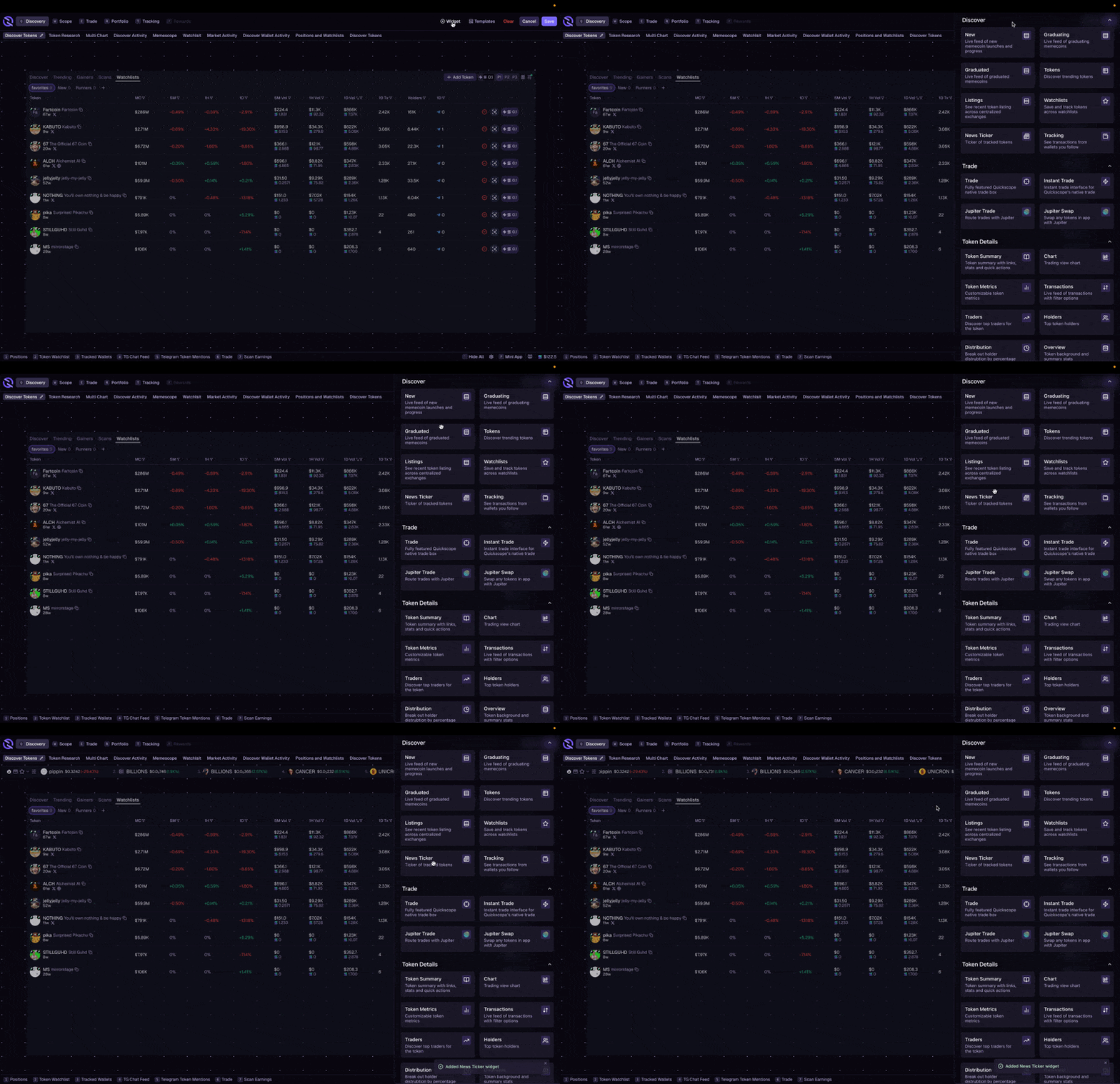
Widgets are the building blocks of your Quickscope workspace. Drag them onto your canvas to build custom layouts tailored to your trading style.
## Adding Widgets
Click **Edit View** in the top right.
The drawer appears on the right side with all available widgets.
Resize and position it where you want, then click **Save**.
## Widget Categories
Find new tokens, track launches, and monitor market trends
Charts, transactions, holders, and token analytics
Track positions, P\&L, orders, and trading activity
Connect your Telegram activity to the terminal
## Widget Controls
Most widgets have controls in their header:
| Icon | Control | Description |
| -------------- | --------------- | ------------------------------------------------ |
| Amount buttons | Quick-buy | Set trade amount (0.1, 0.25, 0.5, 1, 2.5, 5 SOL) |
| P1 / P2 / P3 | Preset selector | Switch between saved trading presets |
| Filter tabs | Data filter | Filter by All, You, Dev, Tracked |
| ⏸ | Pause | Stop auto-refresh |
| 🔍 | Search | Search within the widget |
| ⚙️ | Settings | Open widget preferences |
| Filter dot | Active filter | Green dot indicates filters are active |
## Customizing Columns
Table widgets let you choose which columns to display:
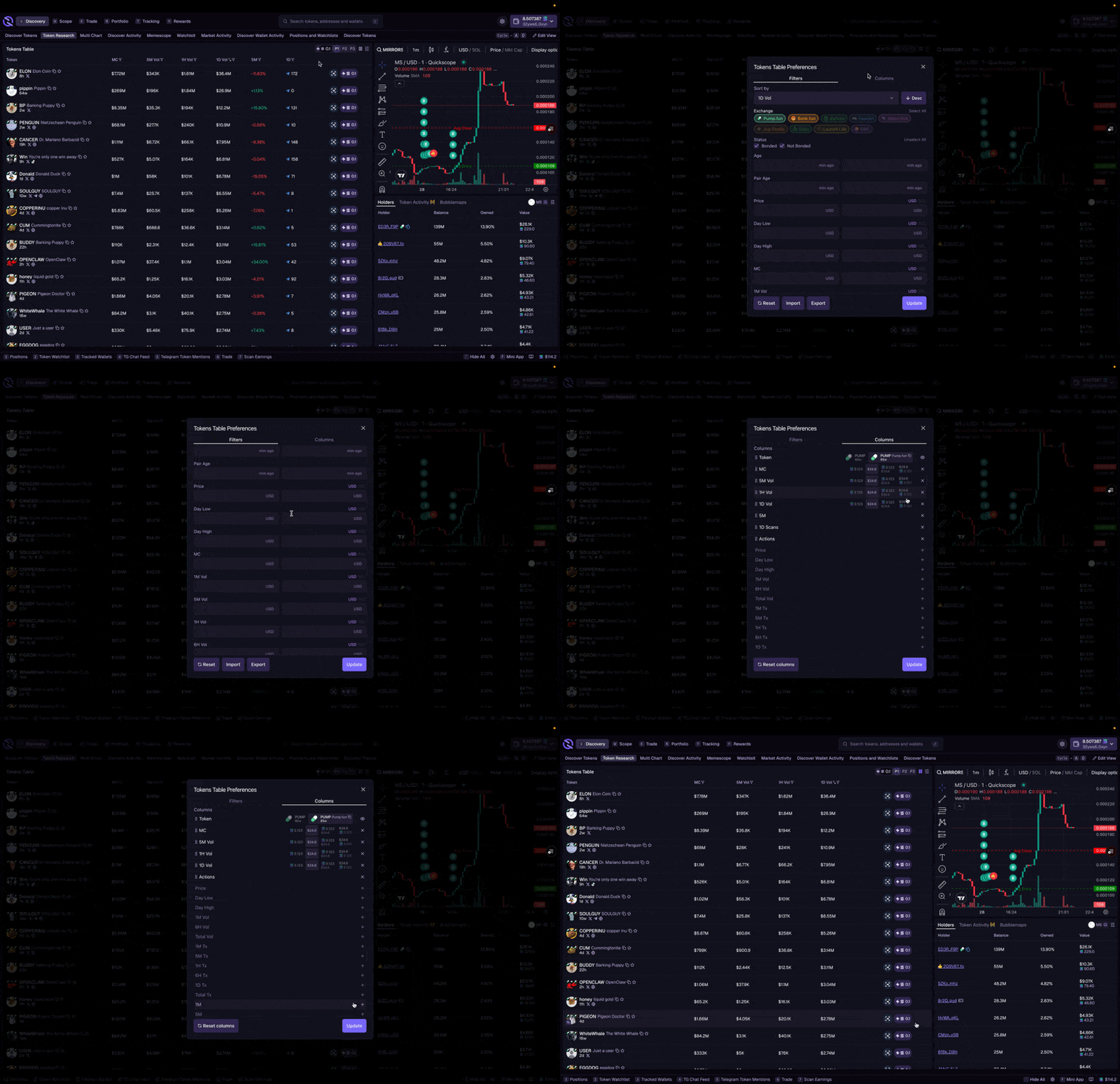
Click the **settings icon** on the widget, then go to **Column Preferences**.
Toggle columns on/off with the **+** and **×** buttons, and drag to reorder.
Click **Update** to save. Use **Reset to defaults** to restore original columns.
## Folders
Folders let you group related widgets together. For example, you could group all your token research widgets (Transactions, Holders, Traders, Bubblemaps) into one folder with tabs.
### Creating a Folder
Click **Edit View** in the top right.
Click **Set Folder** in the top bar.
Click on widgets or drag them from the drawer. Click **Done** when finished.
### Managing Folders
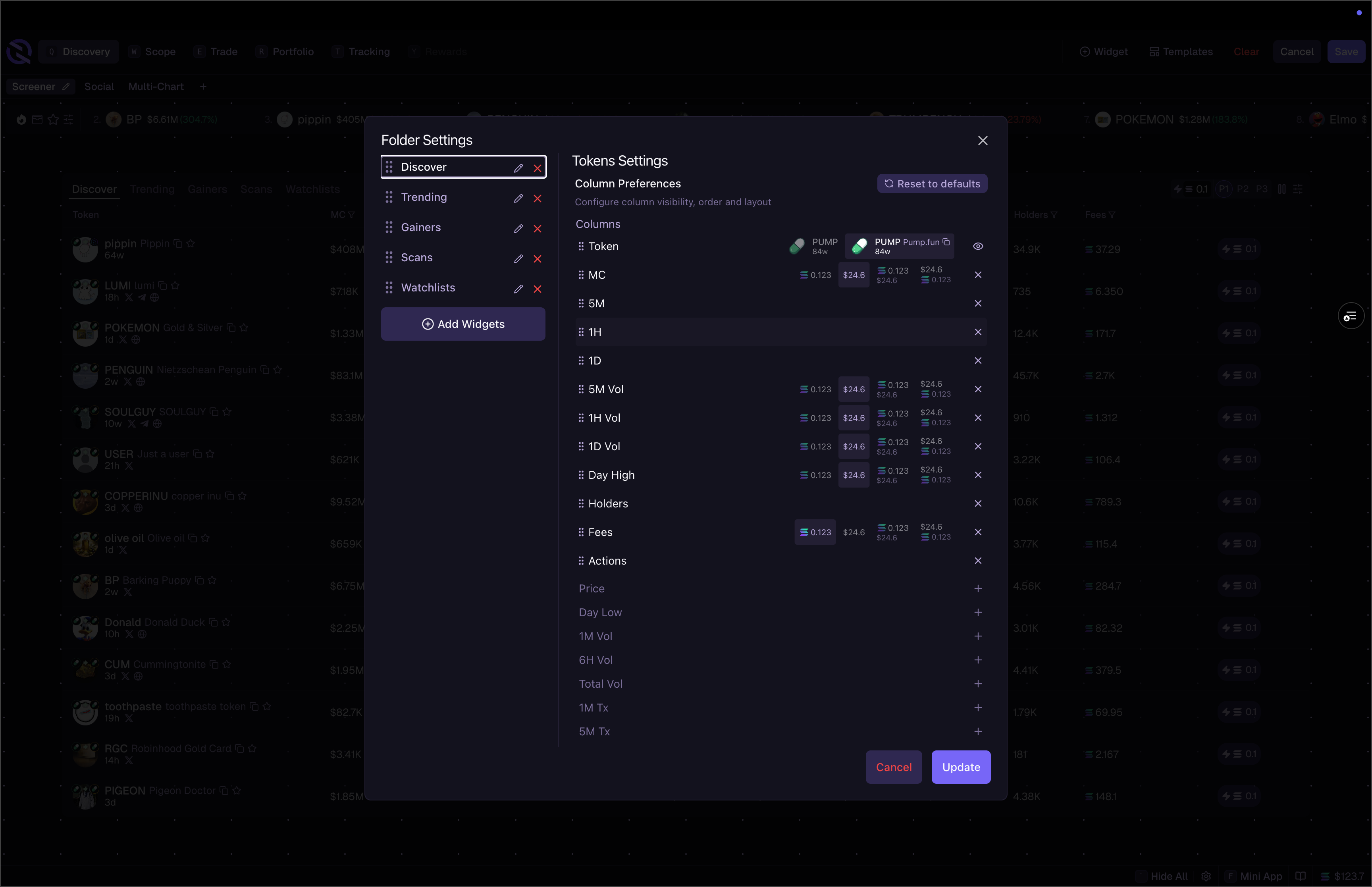
From the **Folder Settings** panel:
* **Rename folder** – click the edit icon next to the folder name
* **Rename widgets** – click the edit icon next to any widget
* **Remove widgets** – click the **×** to remove a widget from the folder
* **Reorder widgets** – drag widgets to change their tab order
### Widget Settings in Folders
Each widget in a folder has its own settings. Click the widget name in Folder Settings to configure:
* **Token Context** – what token the widget displays (current page's token or pinned)
* **Column Preferences** – which columns to show, hide, or reorder
## Related
* [Layouts & Templates](/terminal/workspace/layouts) – Organize your views
* [Context & Filtering](/terminal/workspace/context) – Control what widgets display
 ## Widget Categories
 ## Folders
Folders let you group related widgets together. For example, you could group all your token research widgets (Transactions, Holders, Traders, Bubblemaps) into one folder with tabs.
### Creating a Folder
## Folders
Folders let you group related widgets together. For example, you could group all your token research widgets (Transactions, Holders, Traders, Bubblemaps) into one folder with tabs.
### Creating a Folder
 ## Related
* [Layouts & Templates](/terminal/workspace/layouts) – Organize your views
* [Context & Filtering](/terminal/workspace/context) – Control what widgets display
## Related
* [Layouts & Templates](/terminal/workspace/layouts) – Organize your views
* [Context & Filtering](/terminal/workspace/context) – Control what widgets display