> ## Documentation Index
> Fetch the complete documentation index at: https://docs.quickscope.gg/llms.txt
> Use this file to discover all available pages before exploring further.
# Manage Positions
> Track your holdings, orders, and multi-wallet positions
### Positions Table
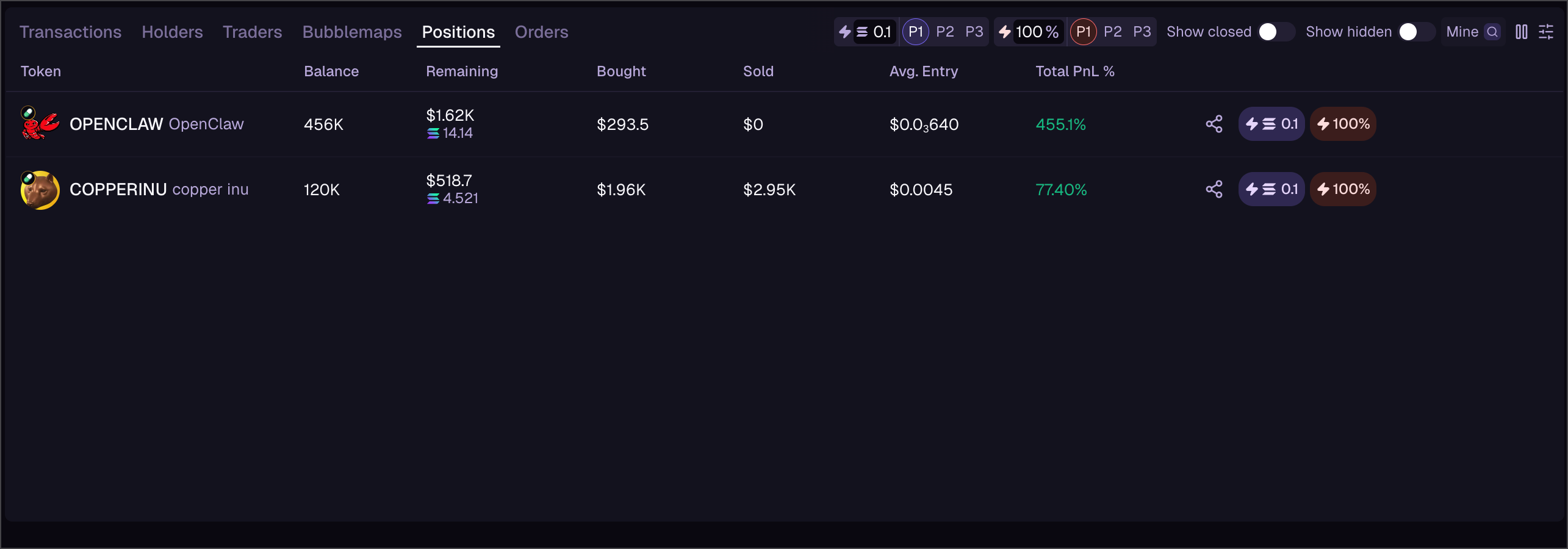
The **Positions** table shows all your current token holdings:
* Token name, amount held, and current value
* Entry price and current PnL (profit/loss)
* Quick actions to trade or view details
Access your positions from the Trade tab or add the Positions widget to any view.
 ### Orders Table
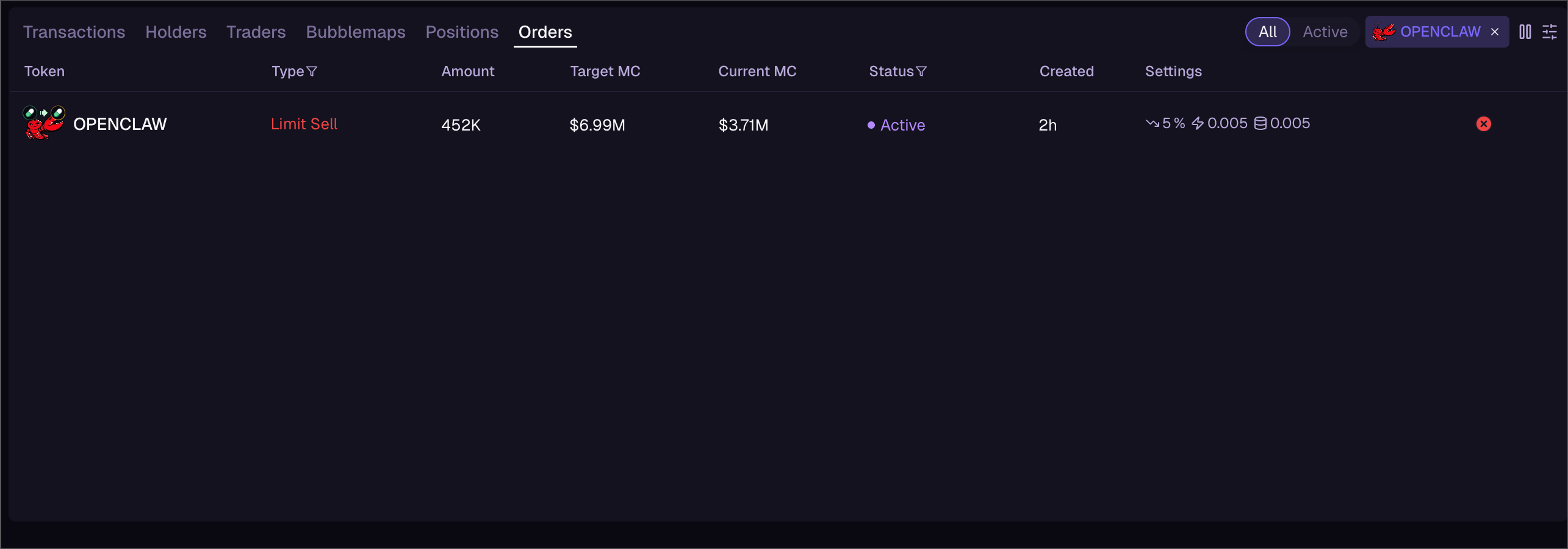
The **Orders** table shows all your limit orders:
* Order type (Limit Buy / Limit Sell)
* Target price and current status
* Created time and fill progress
* Cancel button for pending orders
Filter by **Active** to see only pending orders, or view all historical orders.
### Orders Table
The **Orders** table shows all your limit orders:
* Order type (Limit Buy / Limit Sell)
* Target price and current status
* Created time and fill progress
* Cancel button for pending orders
Filter by **Active** to see only pending orders, or view all historical orders.
 ## Multi-Wallet
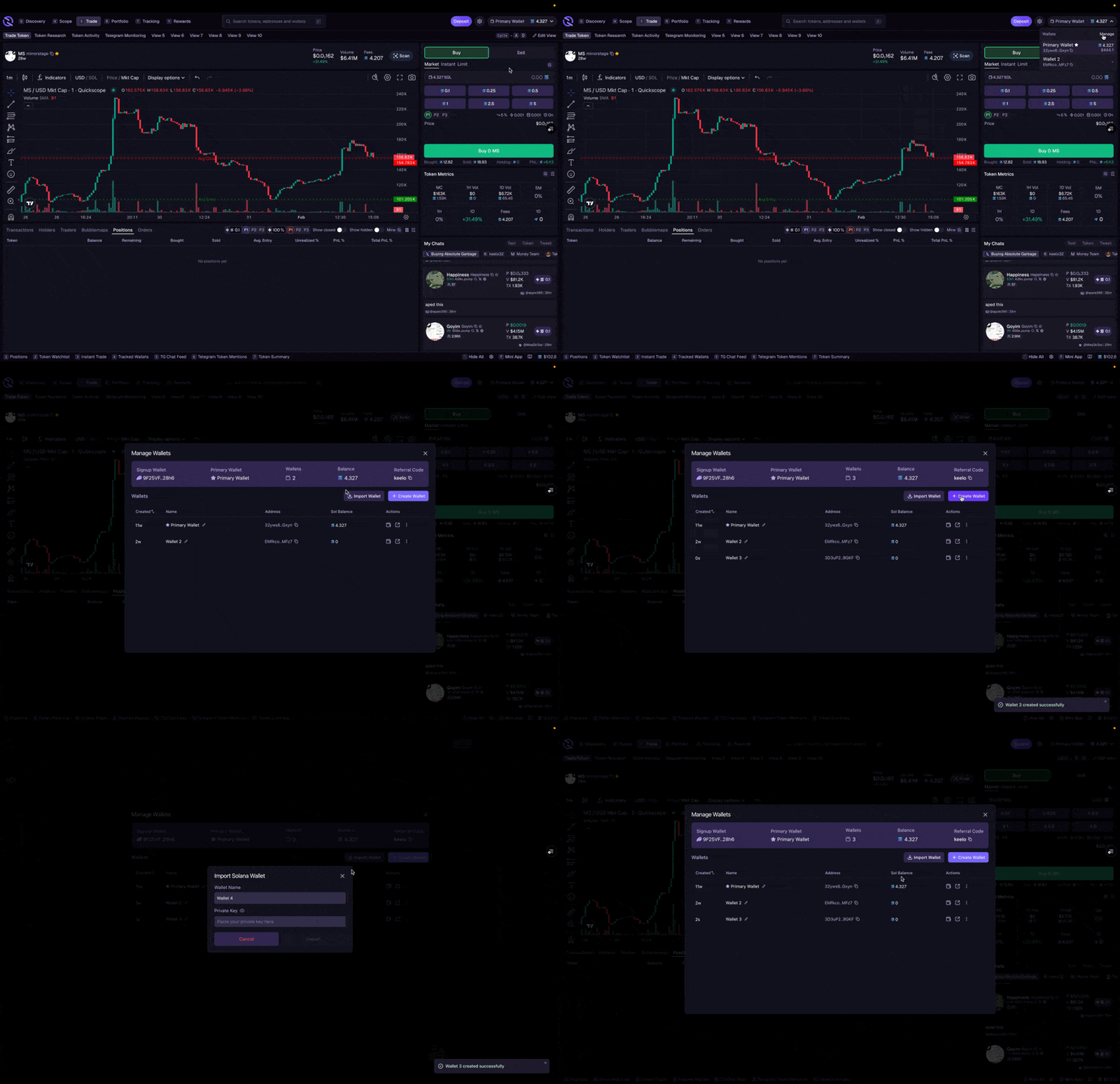
If you have multiple wallets in your account, you can switch between them to trade from different balances:
1. Click your wallet address (top right)
2. Select **Manage Wallets** or click a different wallet
3. Your active wallet changes–all trades, positions, and balances update to reflect the selected wallet
Your presets and settings carry over, but each wallet has its own positions and order history.
## Multi-Wallet
If you have multiple wallets in your account, you can switch between them to trade from different balances:
1. Click your wallet address (top right)
2. Select **Manage Wallets** or click a different wallet
3. Your active wallet changes–all trades, positions, and balances update to reflect the selected wallet
Your presets and settings carry over, but each wallet has its own positions and order history.