> ## Documentation Index
> Fetch the complete documentation index at: https://docs.quickscope.gg/llms.txt
> Use this file to discover all available pages before exploring further.
# Connect Wallet
> Connect your wallet to access trading, portfolio tracking, and rewards.
## Connecting Your Phantom Wallet
Hit the button on the login popover to start.
Make sure the correct wallet is selected in the Phantom extension.
Accept the connection request and you're in.
## Supported Wallets
Quickscope currently supports Phantom wallet, with more wallet integrations coming soon. Sign into Phantom with an existing wallet or create a new Solana wallet to get started.
## Multi-Wallet Support
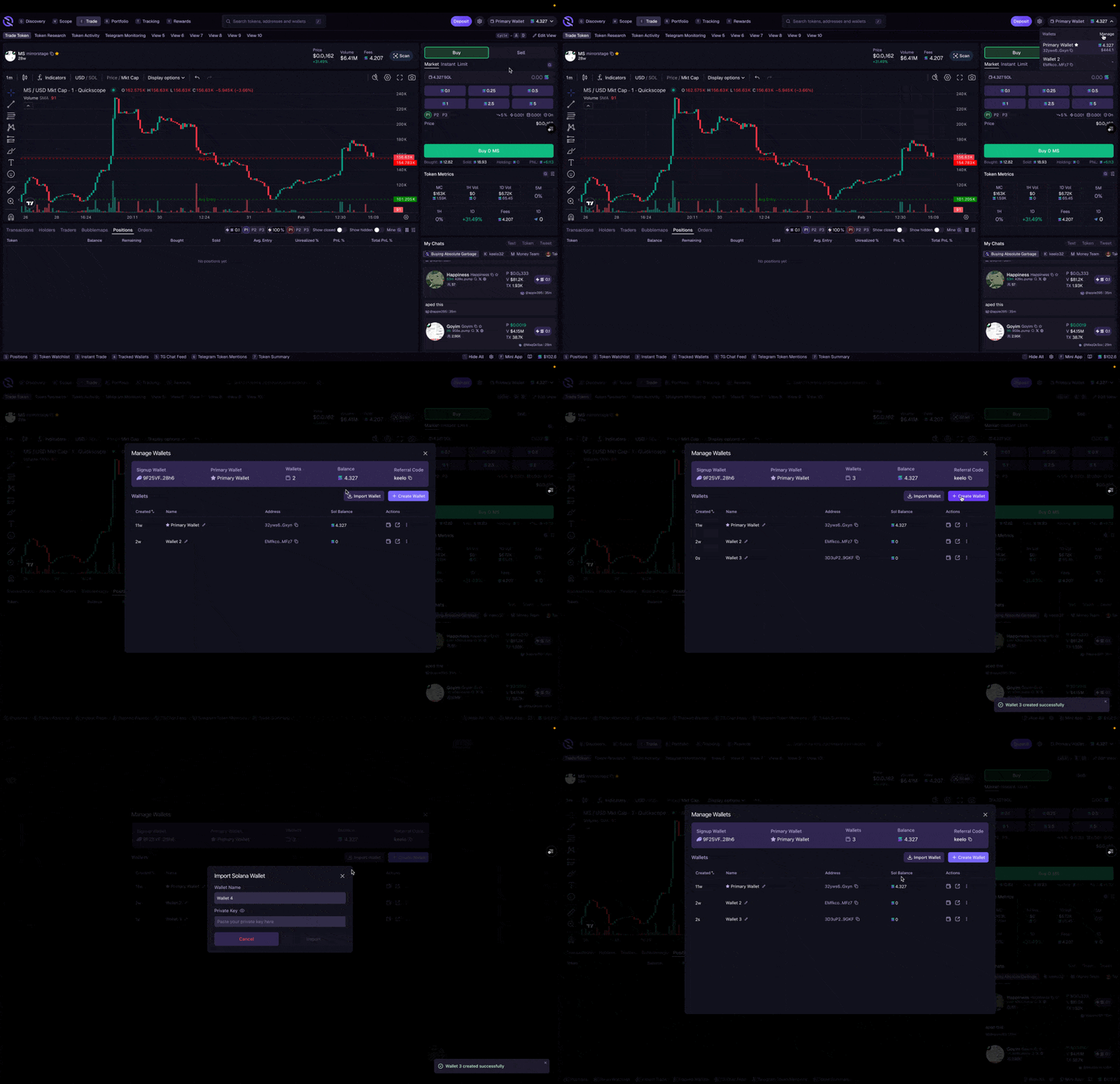
Create and manage up to 25 wallets within your Quickscope account. Click the dropdown in the top right corner and select **Manage Wallets** to open the wallet manager.
Add new Solana wallets to your account
Bring in existing wallets with a private key
See SOL and token balances across wallets
Deposit, withdraw, or move funds between wallets
Export private keys to use wallets outside Quickscope
Remove wallets you no longer need
### Wallet Groups
Organize your wallets into groups for faster switching. Instead of scrolling through all your wallets, cycle between curated sets.
1. Open **Manage Wallets** from the wallet dropdown
2. Click the **Groups** button
3. Create a group and give it a name (e.g., "Mains", "Snipers", "Farming")
4. Assign wallets to the group
You can create up to 10 groups. Switch between groups with the `A` / `S` hotkeys or from the wallet dropdown.
Set up groups for different strategies – one for main trading wallets, another for copy-trading, another for long-term holds.
## Quick Search Wallets
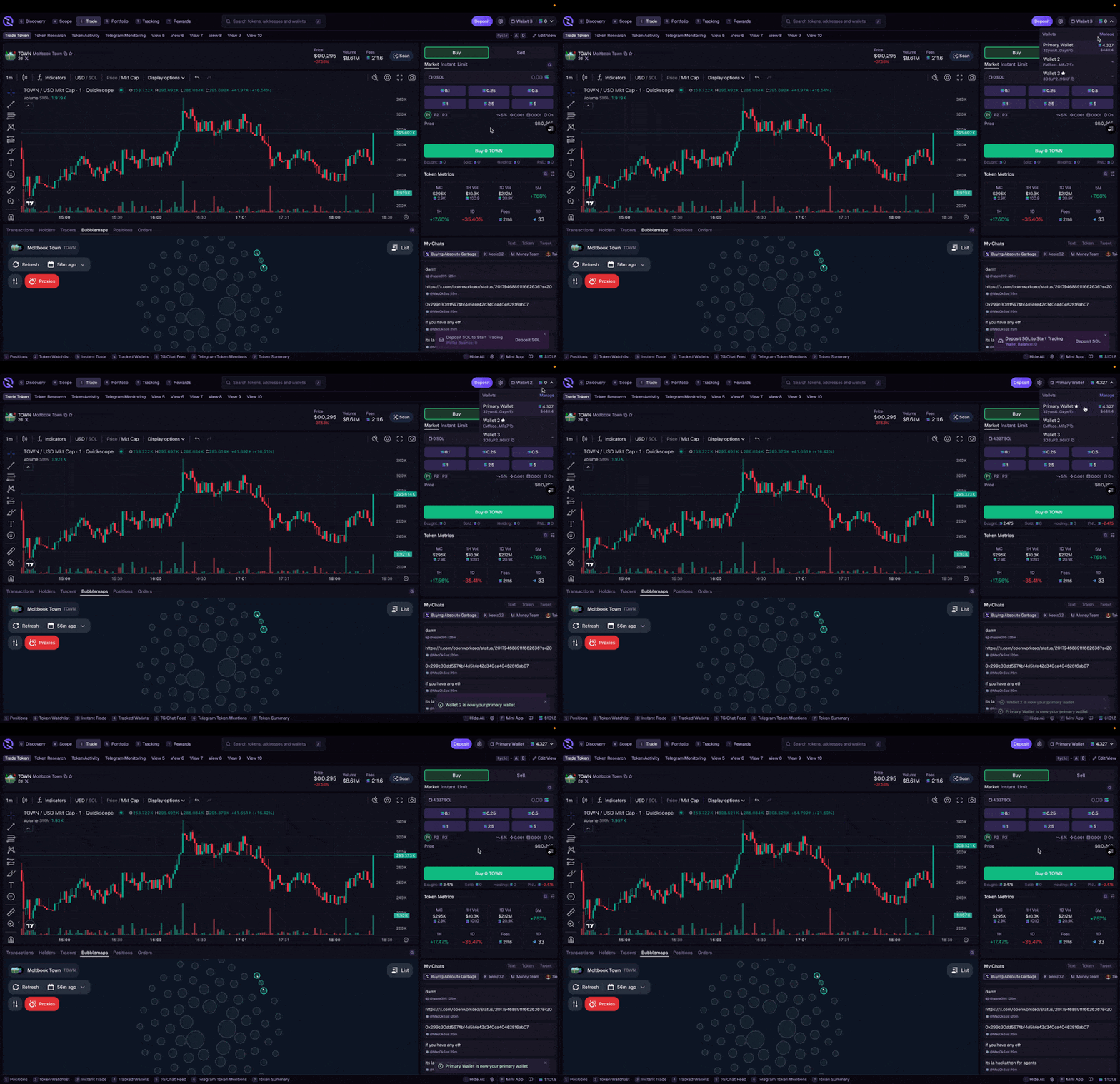
Search for any of your wallets directly from the top bar. Click the wallet selector or use the search field to find wallets by name or address – especially useful when managing many wallets.
## Switching Wallets
Click the right side of the active wallet tab in the top right corner.
Your current wallet is highlighted. Click any other wallet to switch to it.
Click directly on the wallet name to copy its address.
## Import Existing Wallet
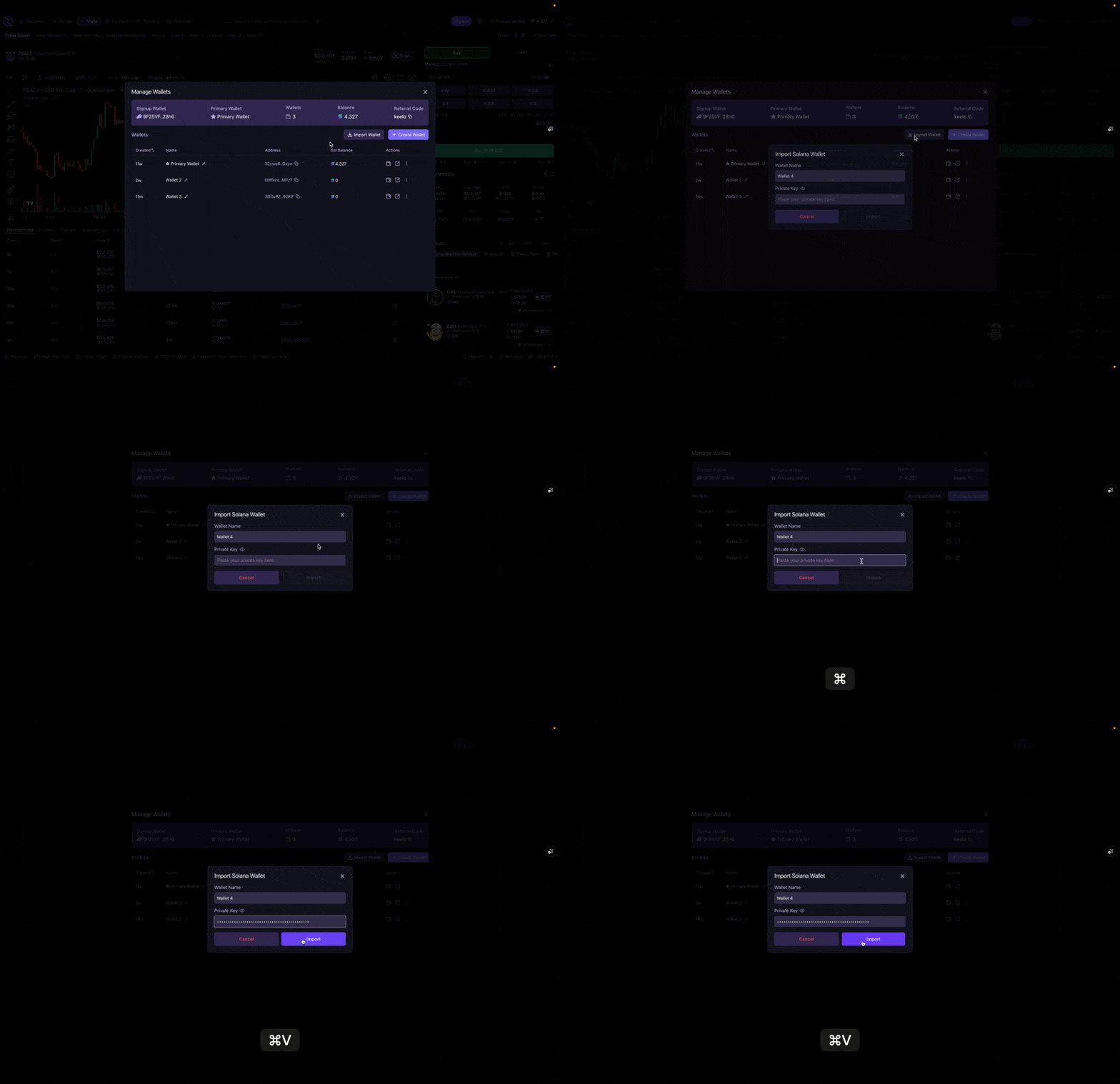
Import existing Solana wallets to your Quickscope terminal using their private key. Once imported, you can view positions and trade like any wallet created on Quickscope.
Click the dropdown in the top right corner and select **Manage Wallets**.
Click **Import Wallet** in the wallet manager.
Paste your Solana wallet's private key. Optionally, give the wallet a name to keep things organized.
## Export Quickscope Wallet
Export the private key for any Quickscope wallet to access it outside the app. Open the Wallet Manager and select the dropdown in the actions column.
## Disconnecting
To disconnect your wallet:
1. Click the settings to access the dropdown menu
2. Select **Logout**
Your positions and settings are tied to your wallet address and will be visible when you reconnect.
 ### Wallet Groups
Organize your wallets into groups for faster switching. Instead of scrolling through all your wallets, cycle between curated sets.
1. Open **Manage Wallets** from the wallet dropdown
2. Click the **Groups** button
3. Create a group and give it a name (e.g., "Mains", "Snipers", "Farming")
4. Assign wallets to the group
You can create up to 10 groups. Switch between groups with the `A` / `S` hotkeys or from the wallet dropdown.
### Wallet Groups
Organize your wallets into groups for faster switching. Instead of scrolling through all your wallets, cycle between curated sets.
1. Open **Manage Wallets** from the wallet dropdown
2. Click the **Groups** button
3. Create a group and give it a name (e.g., "Mains", "Snipers", "Farming")
4. Assign wallets to the group
You can create up to 10 groups. Switch between groups with the `A` / `S` hotkeys or from the wallet dropdown.
 ## Import Existing Wallet
Import existing Solana wallets to your Quickscope terminal using their private key. Once imported, you can view positions and trade like any wallet created on Quickscope.
## Import Existing Wallet
Import existing Solana wallets to your Quickscope terminal using their private key. Once imported, you can view positions and trade like any wallet created on Quickscope.
 ## Export Quickscope Wallet
Export the private key for any Quickscope wallet to access it outside the app. Open the Wallet Manager and select the dropdown in the actions column.
## Disconnecting
To disconnect your wallet:
1. Click the settings to access the dropdown menu
2. Select **Logout**
Your positions and settings are tied to your wallet address and will be visible when you reconnect.
## Export Quickscope Wallet
Export the private key for any Quickscope wallet to access it outside the app. Open the Wallet Manager and select the dropdown in the actions column.
## Disconnecting
To disconnect your wallet:
1. Click the settings to access the dropdown menu
2. Select **Logout**
Your positions and settings are tied to your wallet address and will be visible when you reconnect.