> ## Documentation Index
> Fetch the complete documentation index at: https://docs.quickscope.gg/llms.txt
> Use this file to discover all available pages before exploring further.
# Monitor Holdings
> Monitor your portfolio, positions, and wallet performance
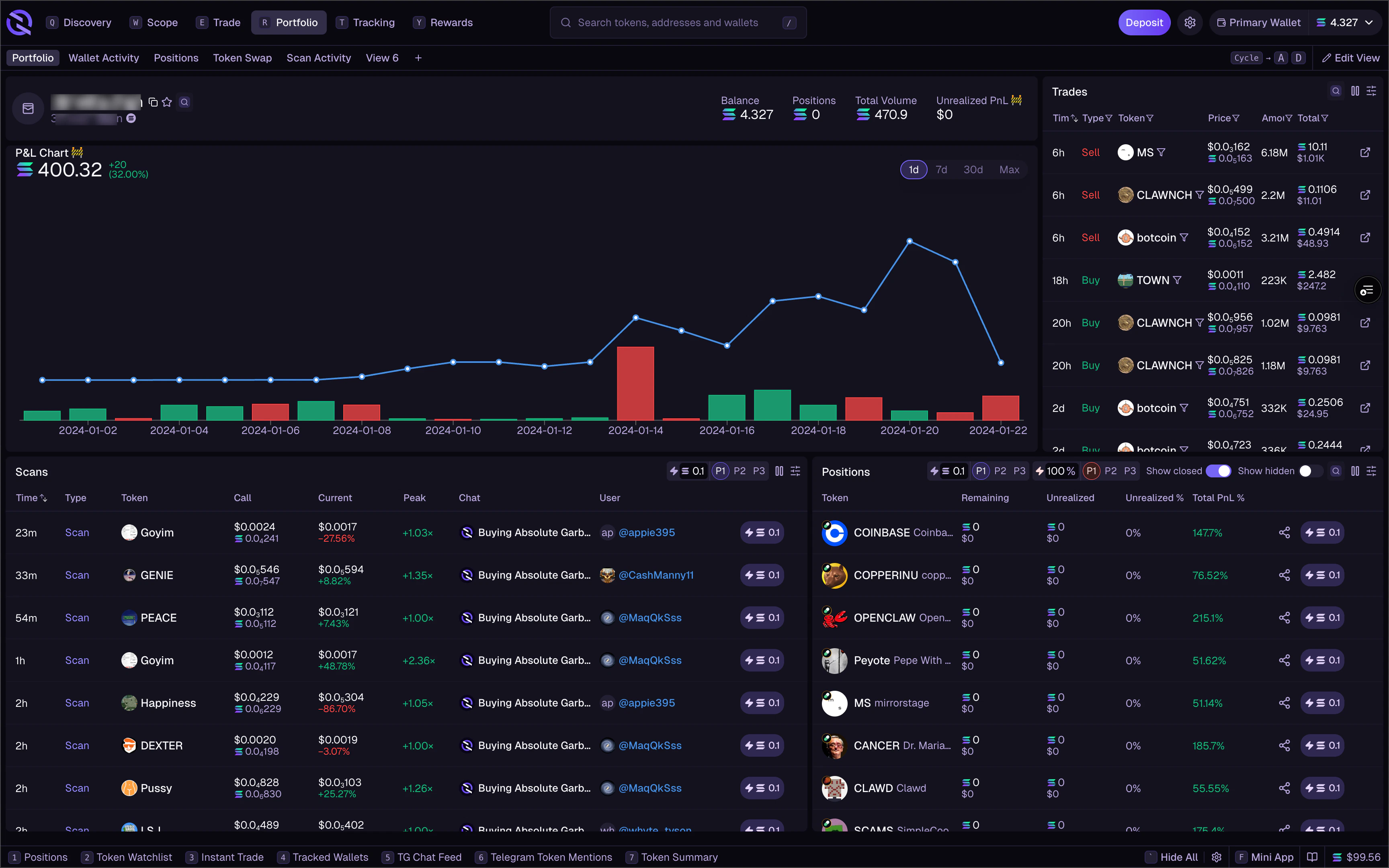
Track all your positions and portfolio performance across Quickscope's platforms.
## Wallet Profile
Overview of your wallet's total value and key metrics:
* Total portfolio value (in SOL and USD)
* SOL balance
* Number of positions
* 24h change
Find Wallet Profile in the Portfolio tab or add it to any custom page.
 ## Positions
Your current token holdings with detailed information for each:
| Column | Description |
| ---------- | -------------------------- |
| Token | Name and symbol |
| Balance | Amount you hold |
| Value | Current USD/SOL value |
| Avg Buy | Your average entry price |
| PnL | Profit/loss (amount and %) |
| 24h Change | Recent price movement |
## Positions
Your current token holdings with detailed information for each:
| Column | Description |
| ---------- | -------------------------- |
| Token | Name and symbol |
| Balance | Amount you hold |
| Value | Current USD/SOL value |
| Avg Buy | Your average entry price |
| PnL | Profit/loss (amount and %) |
| 24h Change | Recent price movement |
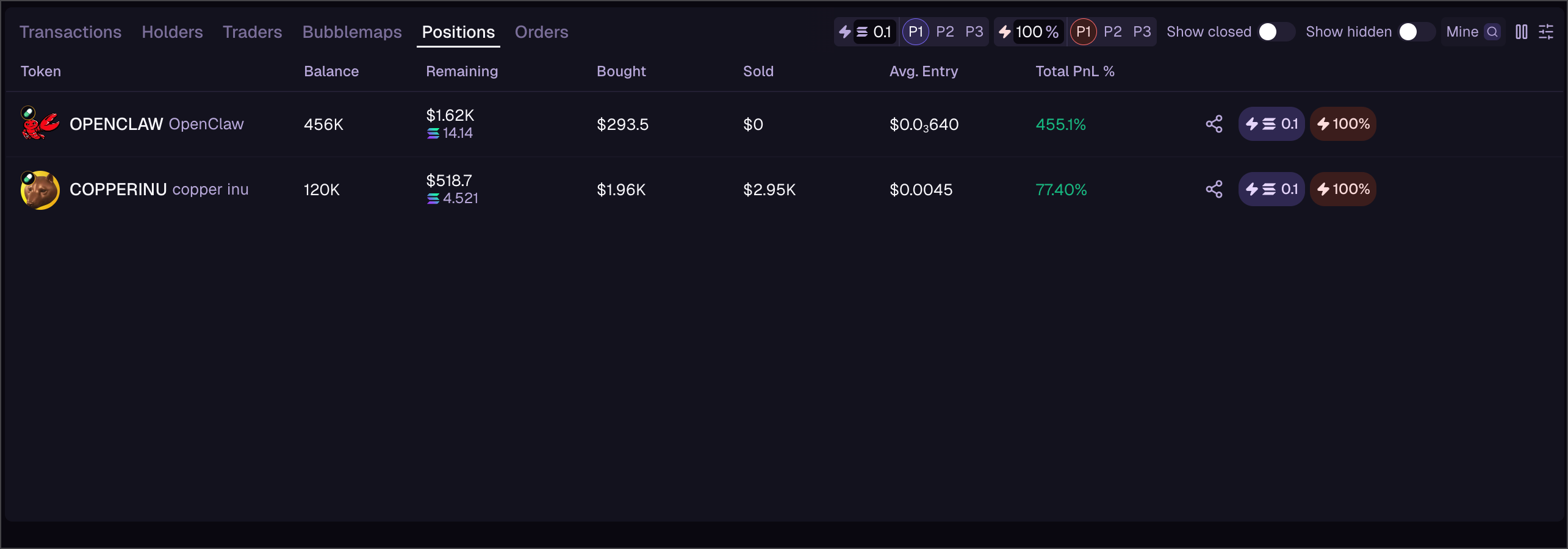 The Positions widget shows all holdings. Click any position to open the token detail view for analysis and trading. On mobile, access positions from the Portfolio tab.
## Top Holdings Chart
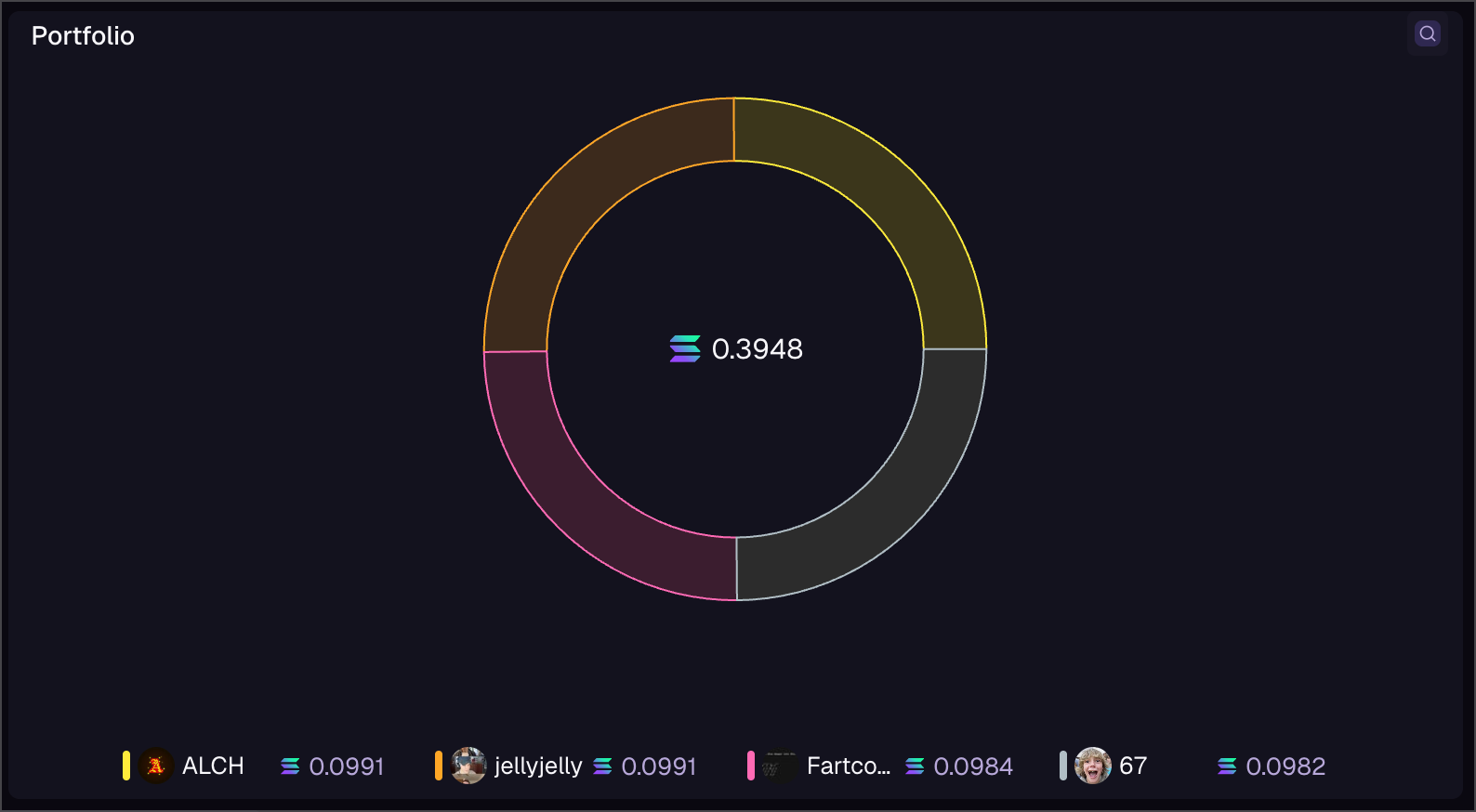
Visual breakdown of your portfolio allocation:
* Pie chart showing position sizes
* Largest holdings highlighted
* Percentage of portfolio for each token
The Positions widget shows all holdings. Click any position to open the token detail view for analysis and trading. On mobile, access positions from the Portfolio tab.
## Top Holdings Chart
Visual breakdown of your portfolio allocation:
* Pie chart showing position sizes
* Largest holdings highlighted
* Percentage of portfolio for each token
 ## Viewing Other Wallets
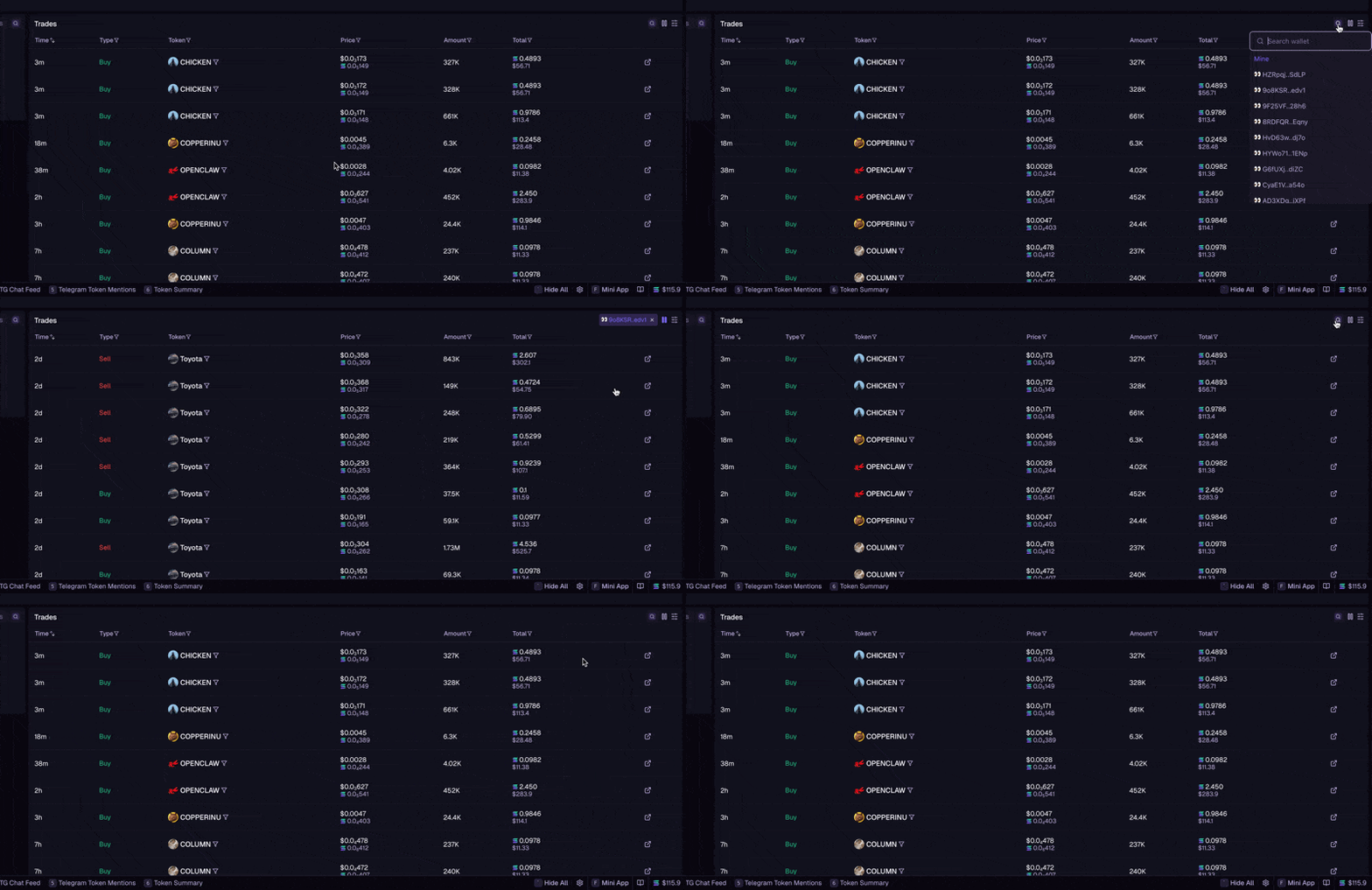
All portfolio widgets support context switching. View any wallet's holdings:
1. Find the search/context selector in the widget header
2. Enter a wallet address or select from tracked wallets
3. View their portfolio as if it were yours
## Viewing Other Wallets
All portfolio widgets support context switching. View any wallet's holdings:
1. Find the search/context selector in the widget header
2. Enter a wallet address or select from tracked wallets
3. View their portfolio as if it were yours
 This works for:
* Wallet Profile
* Positions
* Top Holdings Chart
* Recent Transactions
* Activity Heatmap
Context switching uses public blockchain data. You can view any wallet, but only your own wallet can execute trades.
## Trader Activity Chart
Visualize your trading activity over time with the Trader Activity Chart. This widget plots your buy and sell transactions on a timeline, making it easy to spot patterns, high-activity periods, and quiet stretches.
The chart supports multiple time ranges so you can zoom in on recent activity or look at longer-term trends. Combine it with the Activity Heatmap below for a full picture of your trading behavior.
## Activity Heatmap
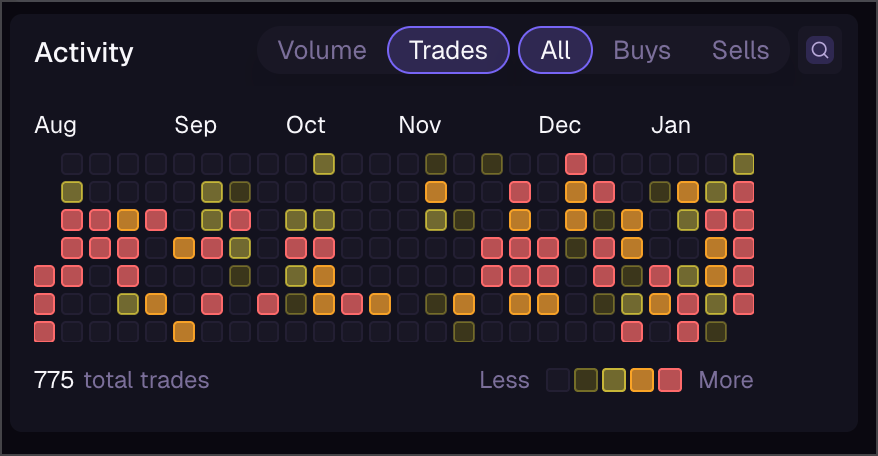
Calendar view showing your trading activity:
* Days with trades highlighted
* Color intensity shows volume
* Click any day to see transactions
Useful for reviewing your trading patterns and frequency.
This works for:
* Wallet Profile
* Positions
* Top Holdings Chart
* Recent Transactions
* Activity Heatmap
Context switching uses public blockchain data. You can view any wallet, but only your own wallet can execute trades.
## Trader Activity Chart
Visualize your trading activity over time with the Trader Activity Chart. This widget plots your buy and sell transactions on a timeline, making it easy to spot patterns, high-activity periods, and quiet stretches.
The chart supports multiple time ranges so you can zoom in on recent activity or look at longer-term trends. Combine it with the Activity Heatmap below for a full picture of your trading behavior.
## Activity Heatmap
Calendar view showing your trading activity:
* Days with trades highlighted
* Color intensity shows volume
* Click any day to see transactions
Useful for reviewing your trading patterns and frequency.
 ## Hide Tokens
Keep your portfolio view clean by hiding tokens you don't want to see.
## Hide Tokens
Keep your portfolio view clean by hiding tokens you don't want to see.
 ### Hiding a Token
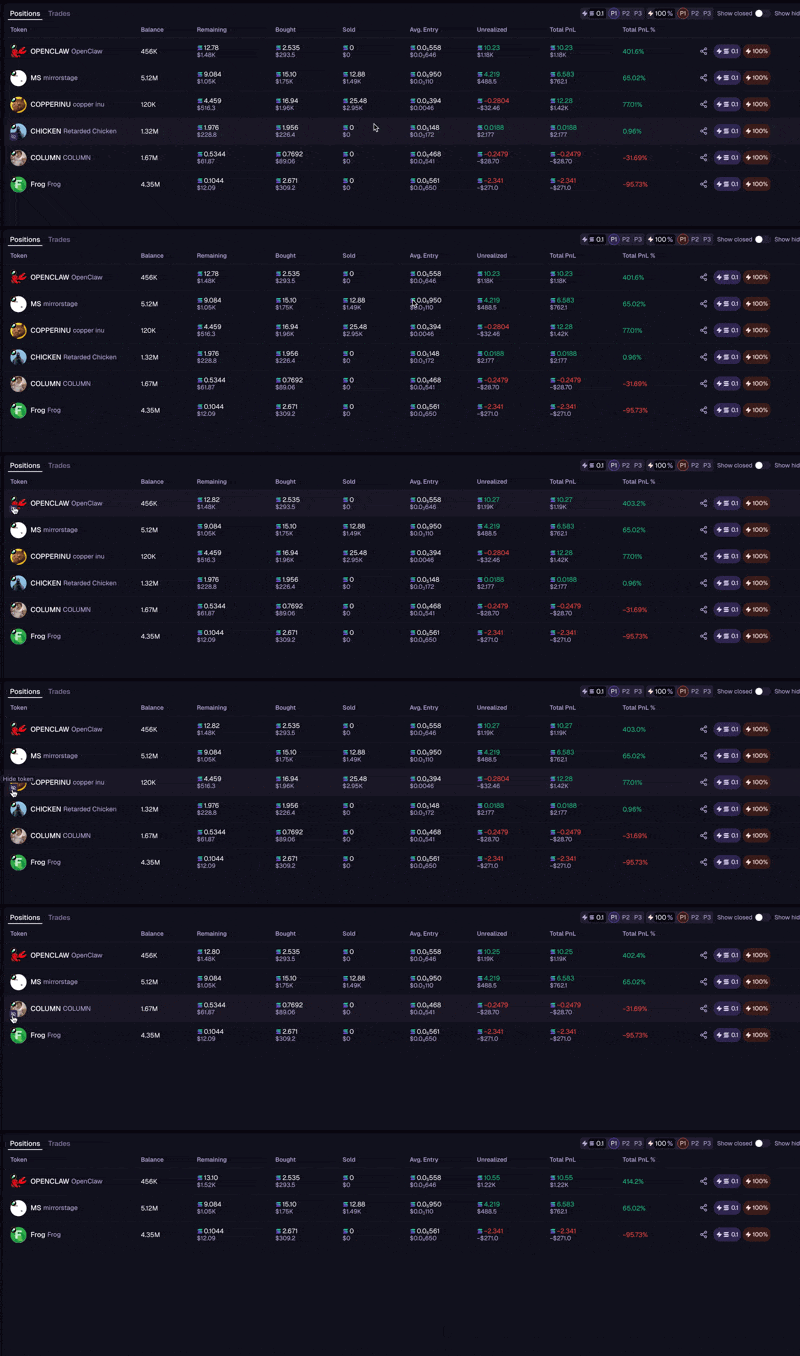
Hover over any token in your Positions table, Token Table, or Memescope and click the **hide icon** (eye with slash) that appears next to the token image.
Hidden tokens are removed from:
* Positions tables
* Token tables
* Memescope feeds
* Token page suggestions
### Managing Hidden Tokens
Access your hidden tokens anytime:
1. Click the **Settings** or **filter icon** on any Positions widget
2. Select **Manage Hidden Tokens**
3. View all hidden tokens with the option to unhide
### Hiding a Token
Hover over any token in your Positions table, Token Table, or Memescope and click the **hide icon** (eye with slash) that appears next to the token image.
Hidden tokens are removed from:
* Positions tables
* Token tables
* Memescope feeds
* Token page suggestions
### Managing Hidden Tokens
Access your hidden tokens anytime:
1. Click the **Settings** or **filter icon** on any Positions widget
2. Select **Manage Hidden Tokens**
3. View all hidden tokens with the option to unhide
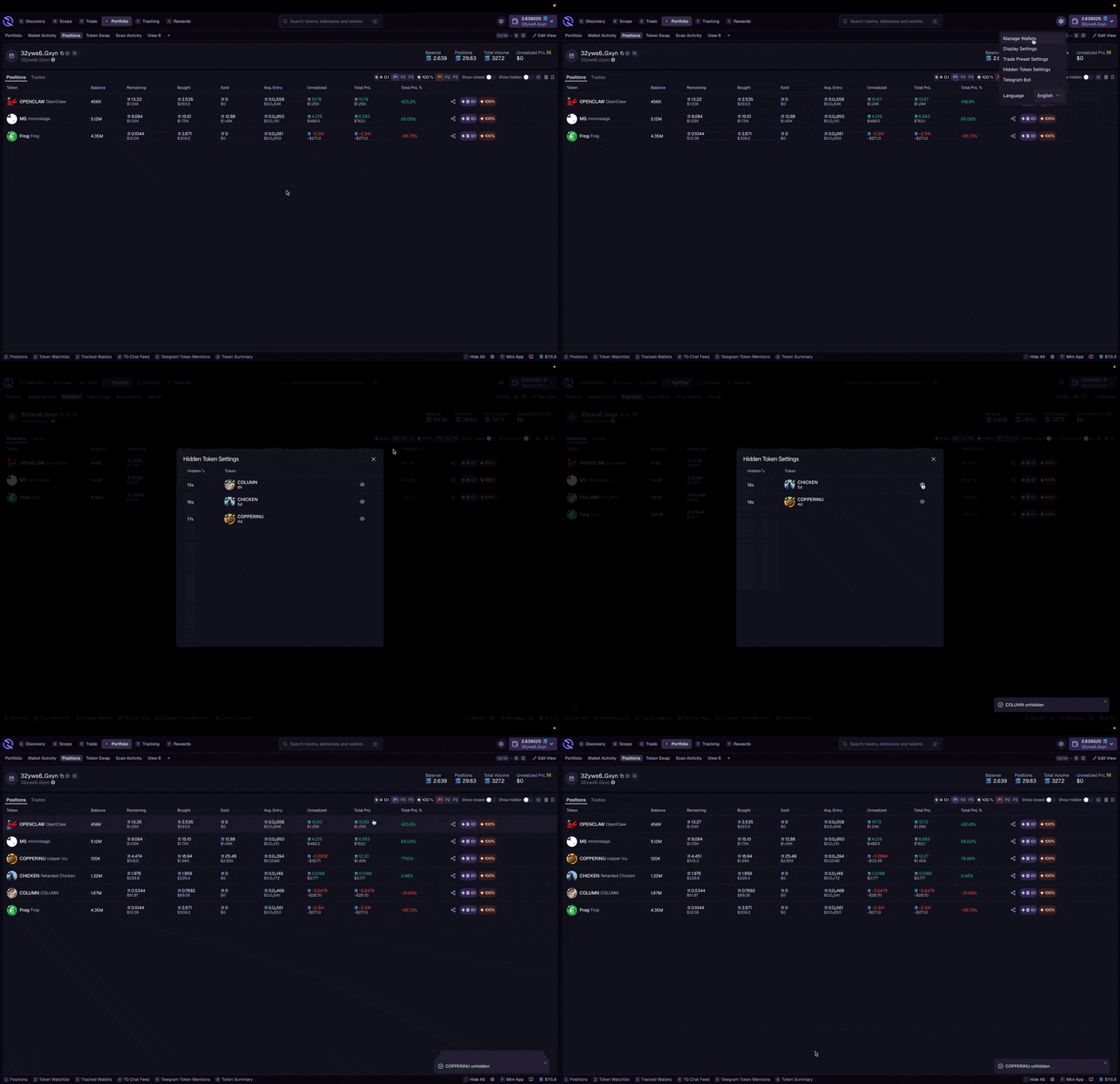 Use this to hide dust positions, scam tokens, or tokens you've fully exited but still appear due to tiny balances.